Switch Modchip Walkthrough - Switch OLED
The Installation
This page will guide you through the modchip installation process on "OLED" model Switch consoles. Everything you need will be listed and pictures of what your solder joints should (roughly) look like will be posted by each step. Specific steps such as photos of the screws you need to unscrew aren't mentioned here as they can be found on guides from iFixit (for example). It's expected for you to know what to unscrew.
Diode reading values
These values can differ from console to console. If your modchip installation works fine and doesn't match these exact values, it's not an issue. These values can act as "indicators" about what you might expect. Especially the C (DAT0) point can have a large range of acceptable values.
| Positive to ground | Negative to ground |
|---|---|
SP1 ~0.420 |
SP1 ~0.520 |
SP2 ~0.25 |
SP2 ~0.20 |
A (CMD) ~0.470 |
A (CMD) ~0.875 |
B (RST) ~0.405 |
B (RST) OL |
C (DAT0) ~0.435 |
C (DAT0) ~0.450-0.850 |
D (CLK) ~0.440 |
D (CLK) ~0.880 |
3.3v ~0.445 |
3.3v ~0.850 |
Requirements:
- A soldering iron with a small(er) tip (preferably temperature controlled that can reach 350C consistently)
- Good quality flux
- The right screwdriver bits (+00 and Y1.5 bits)
- Good quality 34-38 awg wire (such as Kynar wire, other wire can work as long as it's single core)
- Thermal paste (non-conductive)
- Isopropyl Alcohol (preferably 95-99% IPA)
- Your modchip (including the SoC ribbon cable)
- Kapton tape (optional, but recommended)
- Toothpicks/Q-tips (to remove the thermal paste between the capacitors on the SoC)
- Soldering tin (leaded is recommended, unleaded will work depending on your skill level)
- Double sided tape (for adhering the modchip to the SoC/RAM IHS)
- A fume extractor (for your own health and safety)
- A microscope (optional but recommended)
- UV Solder mask (optional but recommended)
Additional and/or optional requirements for the Kamikaze method:
- A grinding pen such as the
MaAnt D2with 0.2mm tip (Kamikaze method users ONLY) - Solder with the width of 0.8mm or smaller
- A soldering iron tip like the
TS-J02 - UV Solder mask
- UV Light
The Kamikaze method
The Kamikaze method is also covered on this page, be aware that this is a VERY risky procedure and that you should not attempt this without the required skills/tools. You will find the divide between the DAT0 Adapter and Kamikaze methods at step 14.
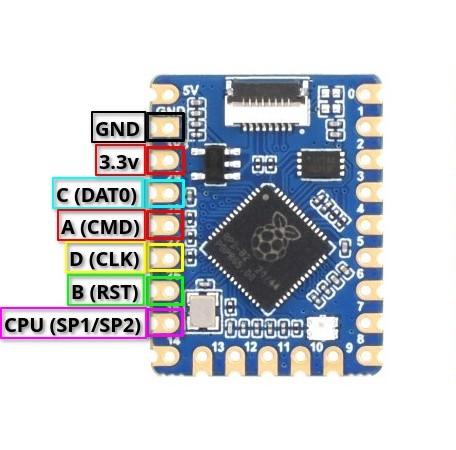
Note for stock RP2040-Tiny development board users
The pinout for the modchip lines of the RP2040-Tiny board are outlined and named in the image below.
In case you want the pinout in text form:
- GPIO Pin 29: C (
DAT0) - GPIO Pin 28: A (
CMD) - GPIO Pin 27: D (
CLK) - GPIO Pin 26: B (
RST) - GPIO Pin 15: CPU (
SP1/SP2)
Instructions:
-
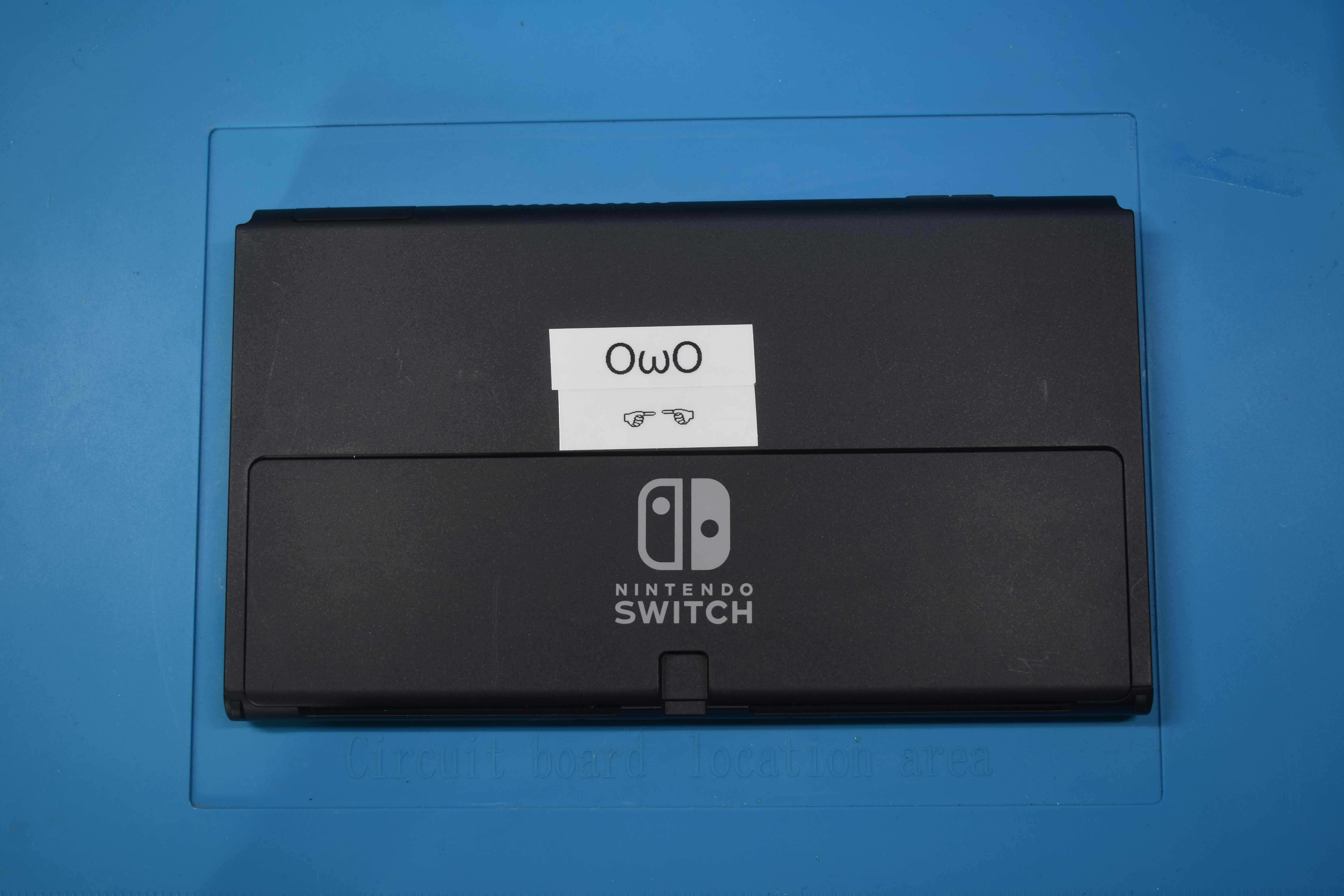
Unscrew the Switch's backplate.
-
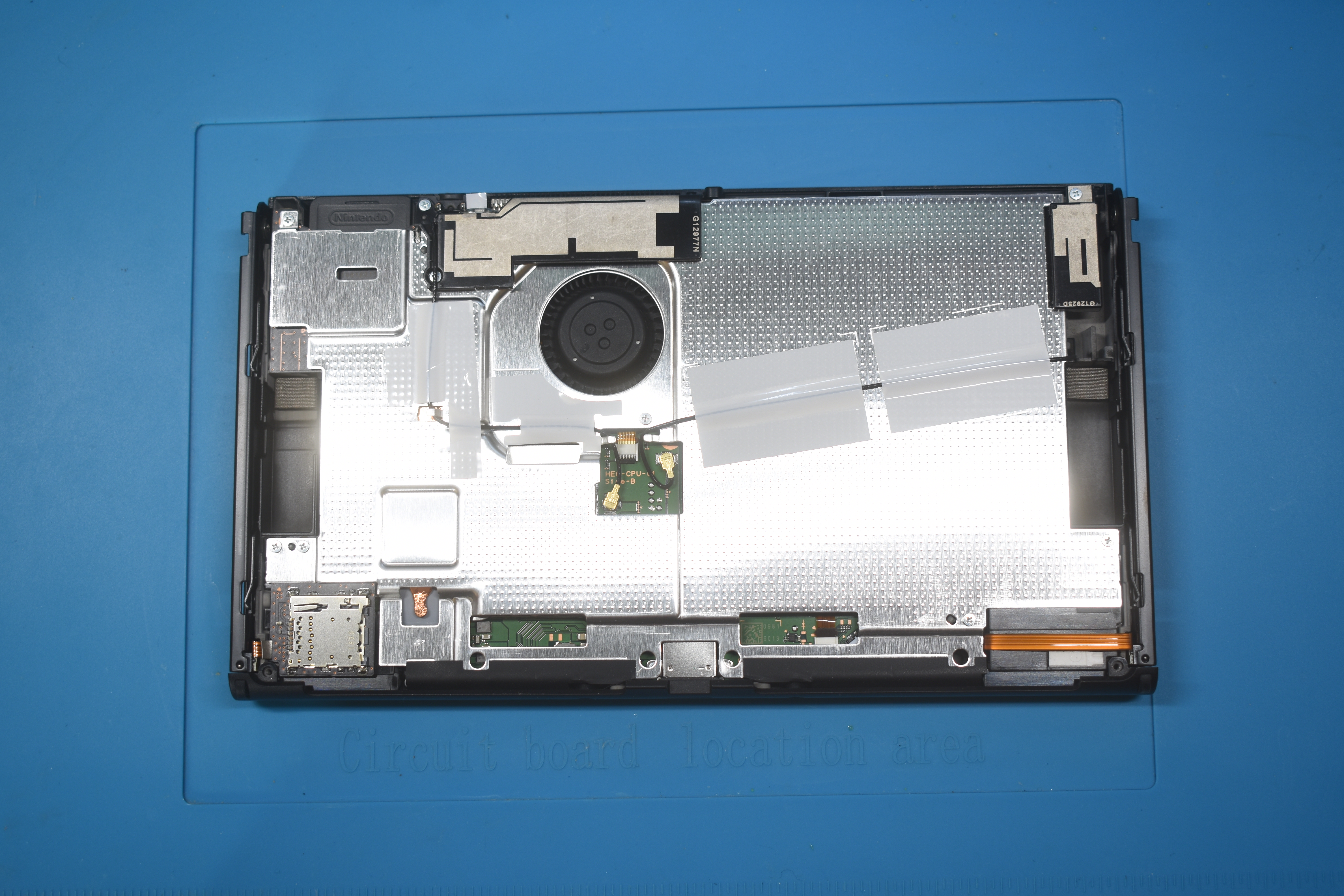
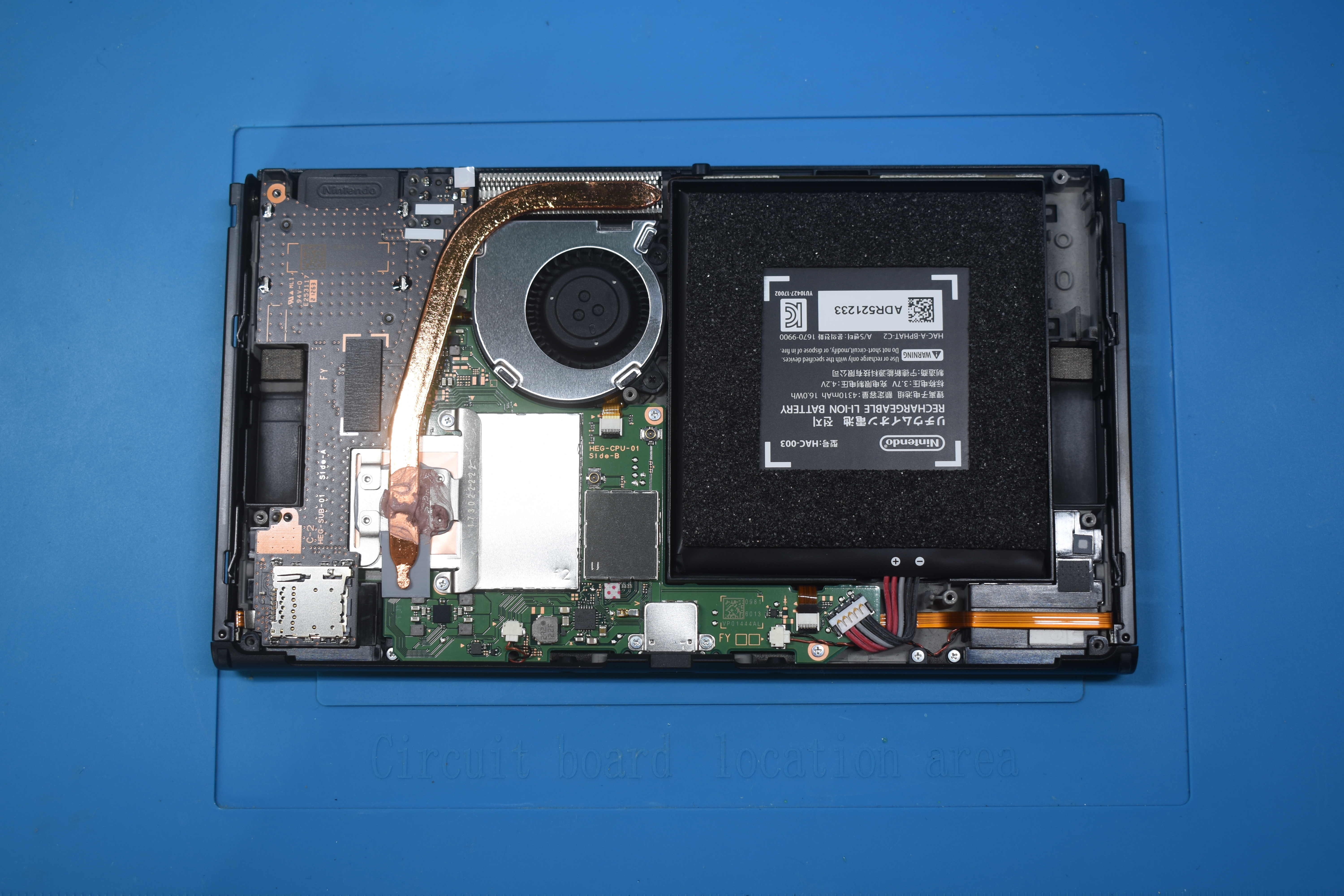
Remove the metal shield/cover (be careful with the antennas that are routed across the metal shield/cover) and disconnect the battery at the bottom right of the motherboard.
-
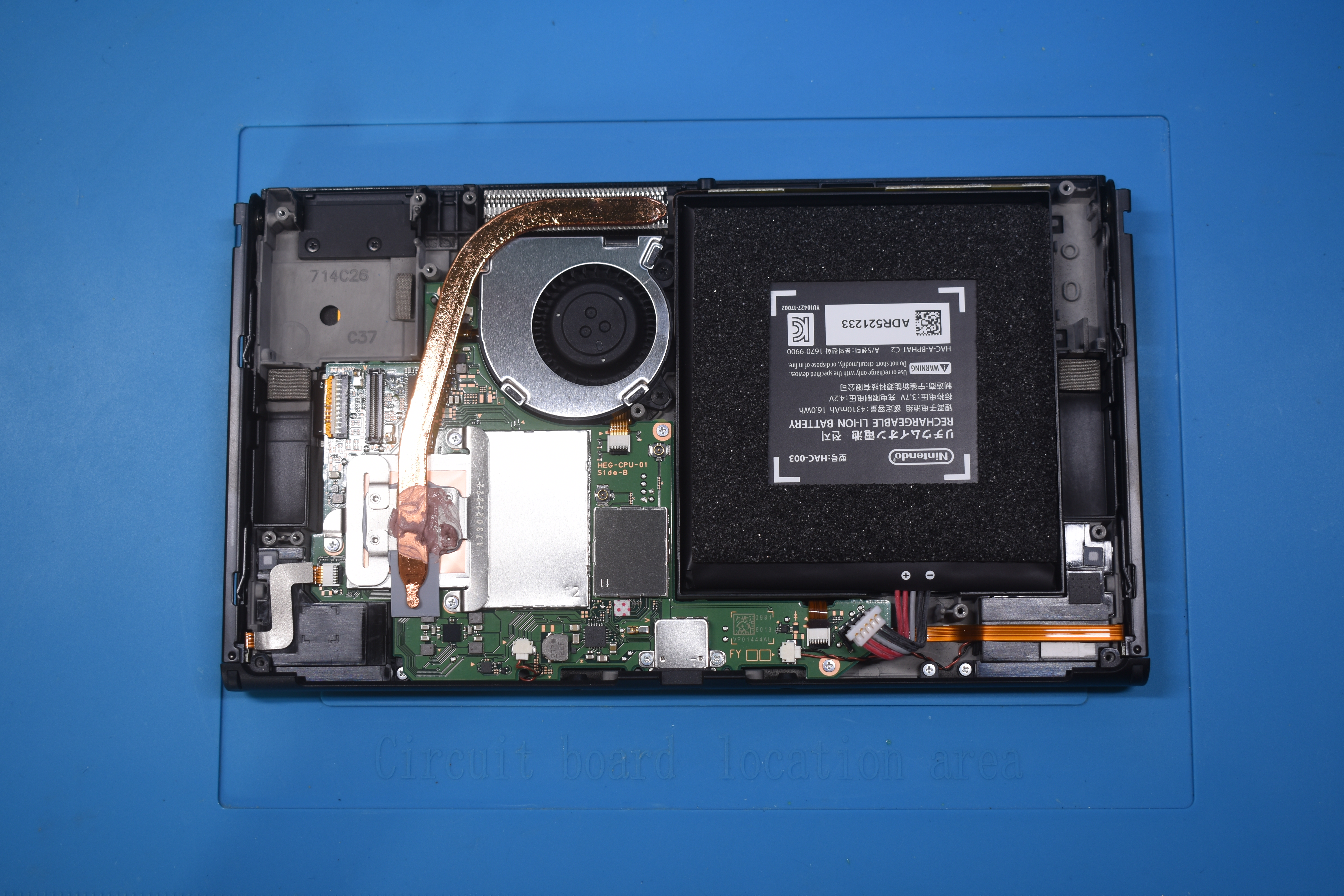
Remove the Gamecard reader/SD card reader board.
-
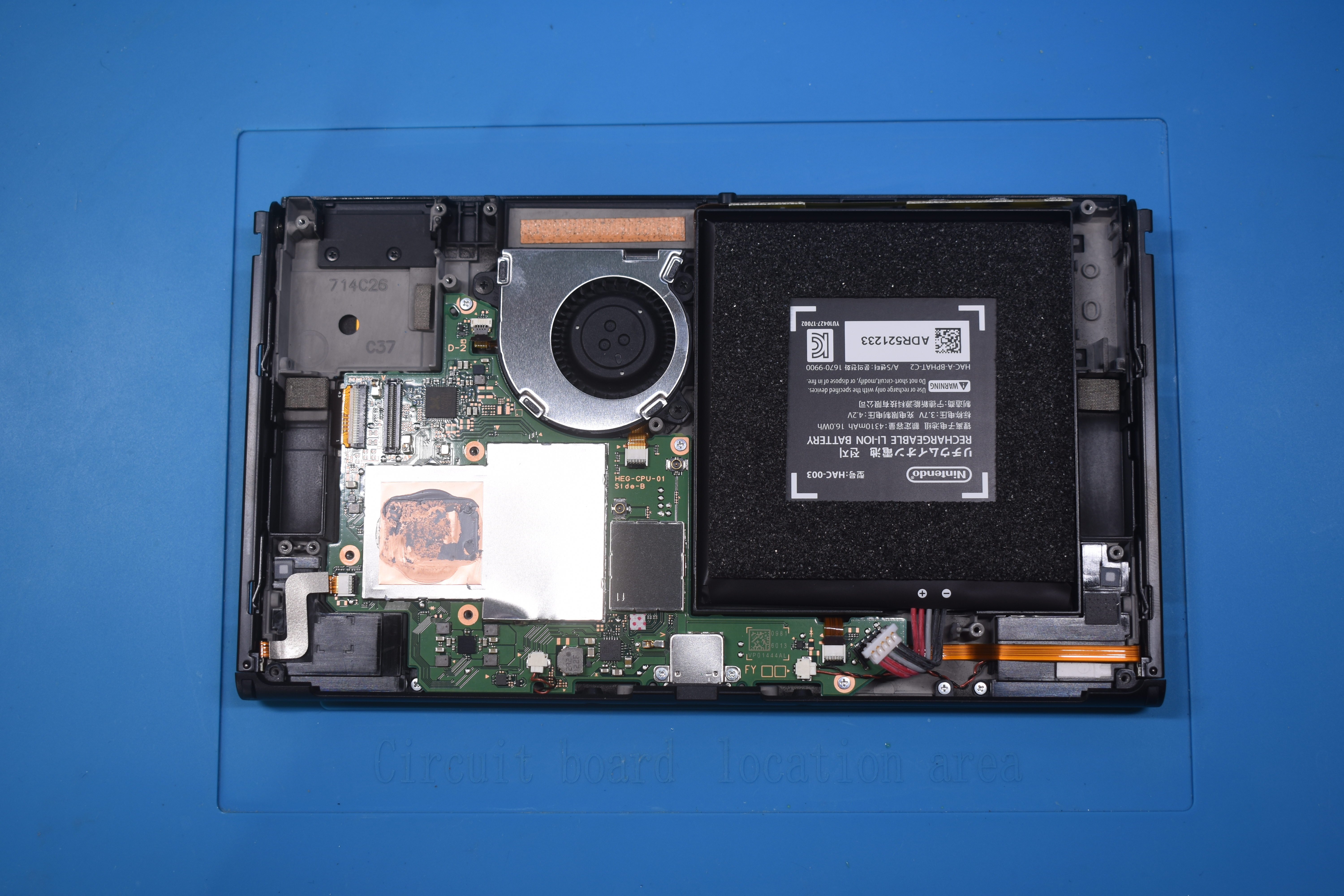
Remove the heatpipe/heatsink.
-
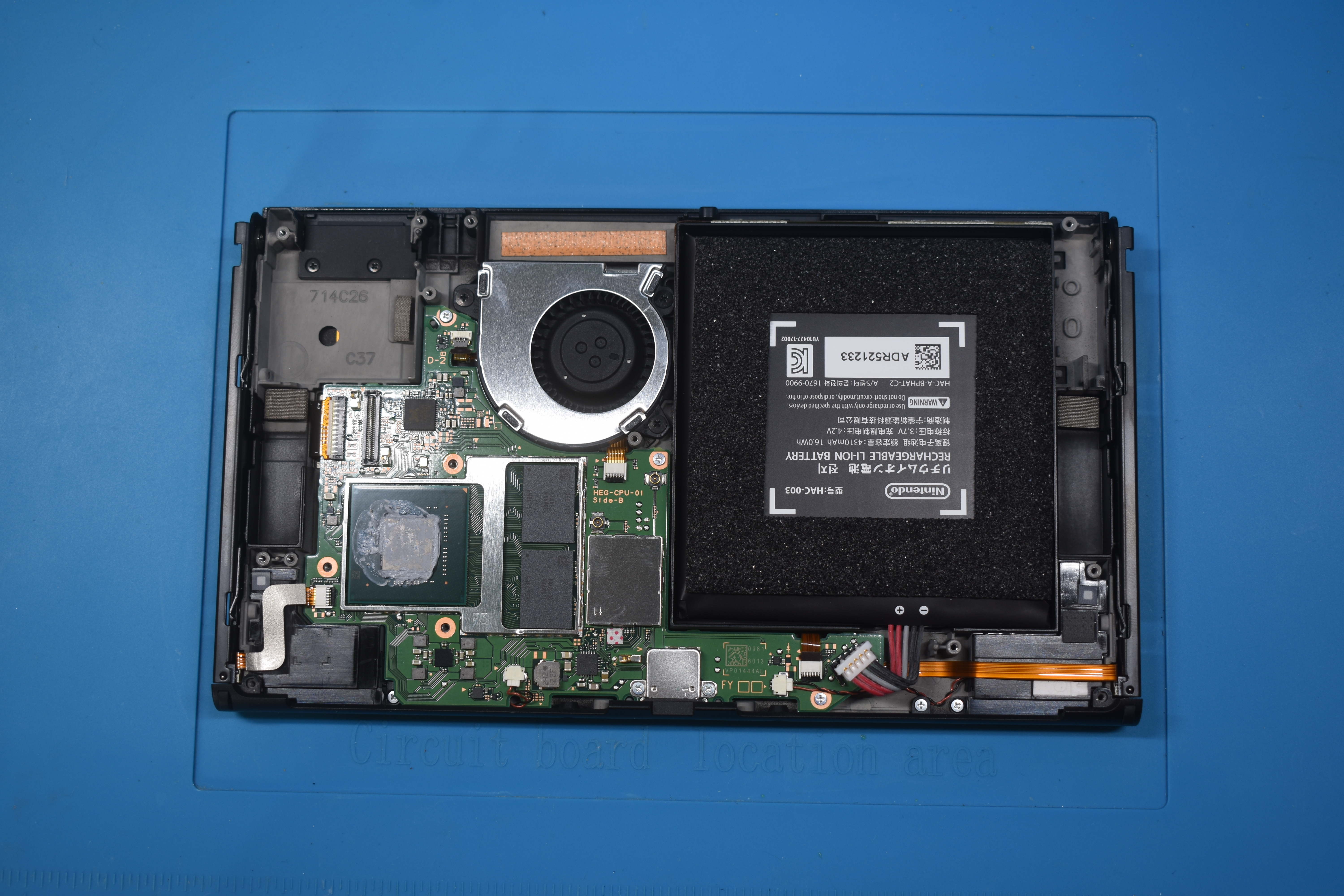
Remove the IHS (Internal Heat Spreader) to expose the bare SoC die and RAM chips.
-
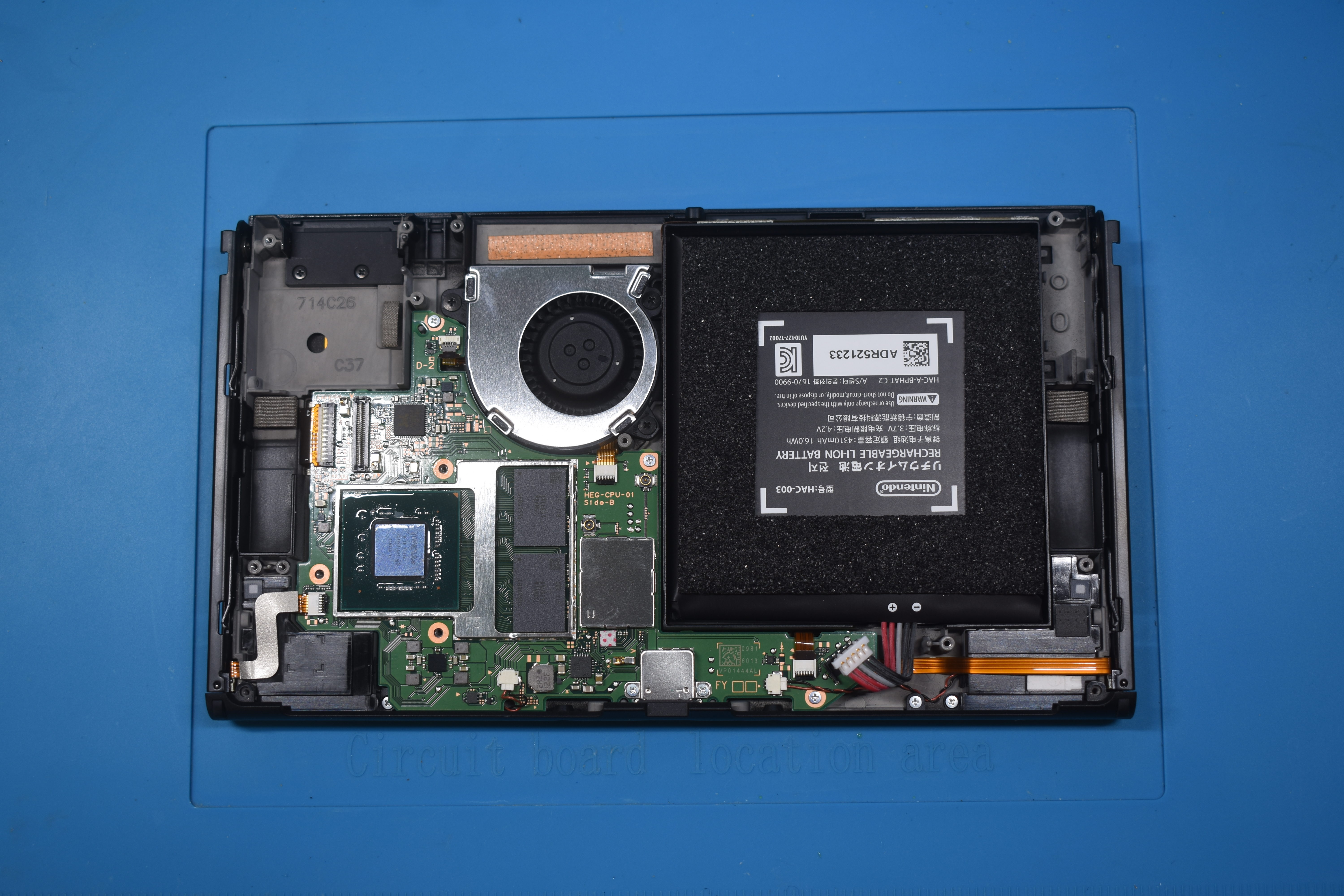
Remove and clean up the thermal paste on the SoC die and around/in-between the capacitors on the SoC using IPA.
- You can also clean off the thermal paste between the IHS and heatpipe/heatsink in the meantime, the red-ish colored thermal goop between the heatpipe/heatsink and metal shield/cover can be left alone.
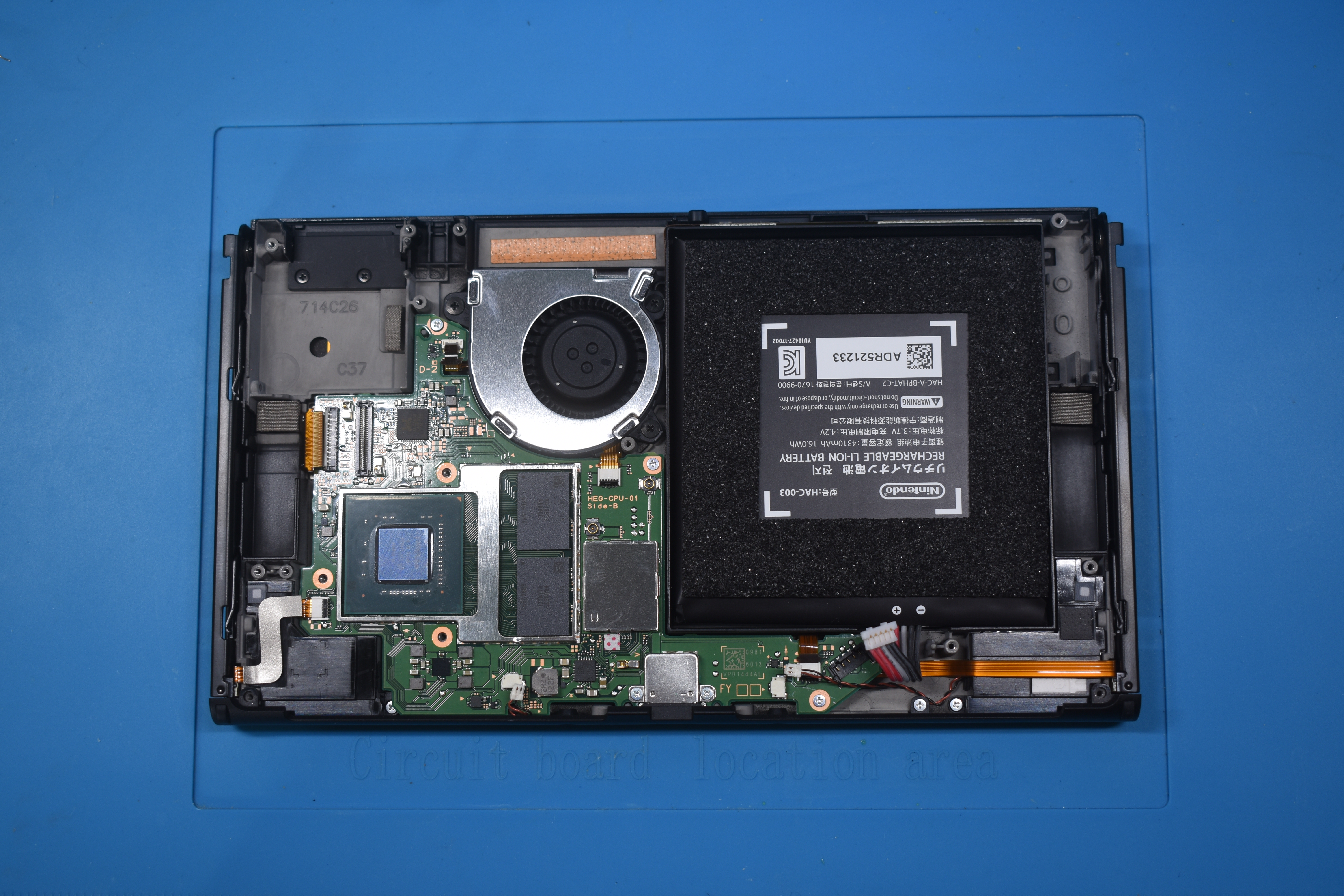
- You can also clean off the thermal paste between the IHS and heatpipe/heatsink in the meantime, the red-ish colored thermal goop between the heatpipe/heatsink and metal shield/cover can be left alone.
-
Remove the fan and unplug the fan ribbon cable, joycon rail ribbon cables, screen ribbon cable and speaker connectors.
-
Unscrew and remove the bottom bar of the shell.
-
Remove the motherboard from the Switch casing.
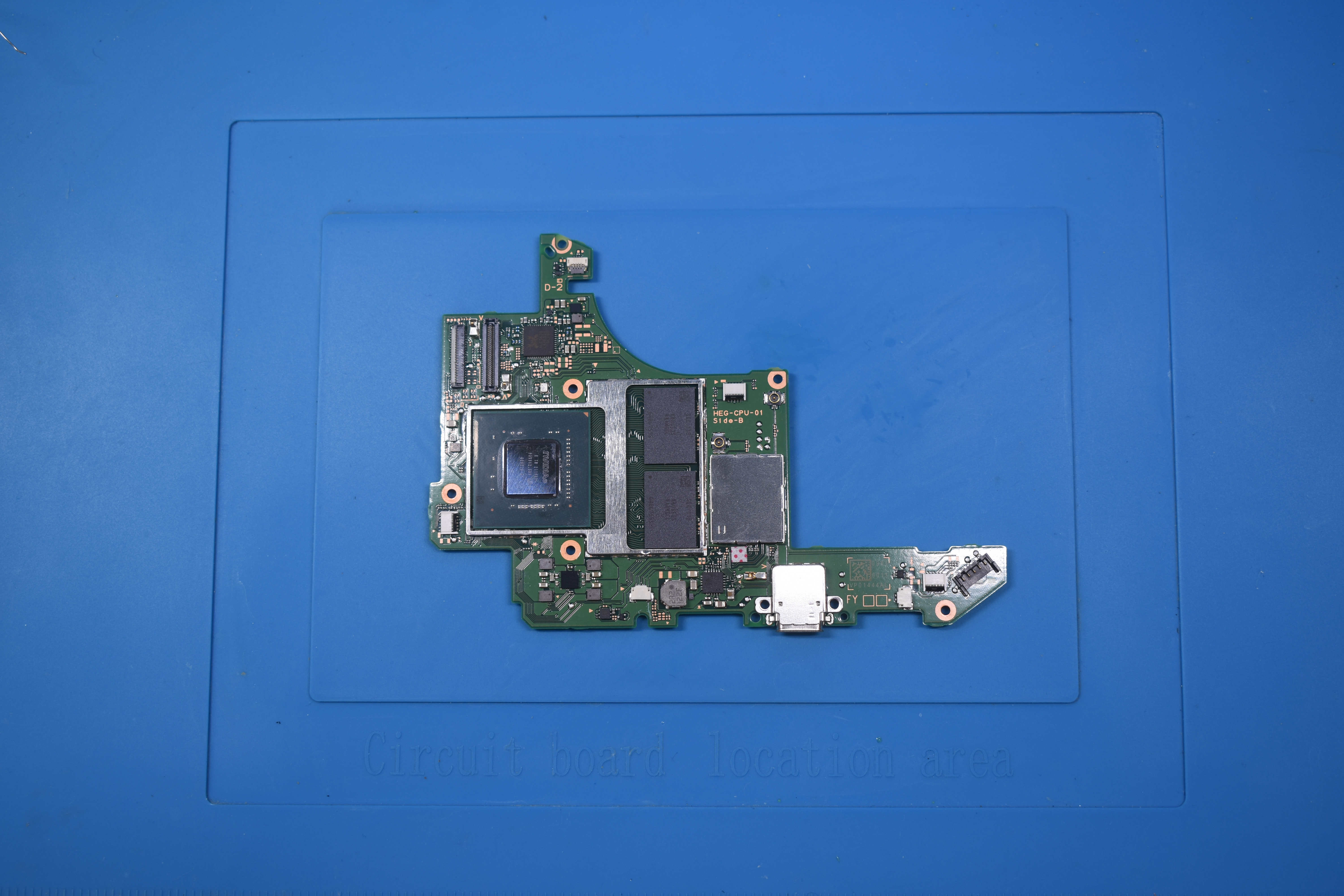
-
Remove the metal plate covering the eMMC chip on the back of the motherboard. (Only for people following the DAT0 adapter method.)
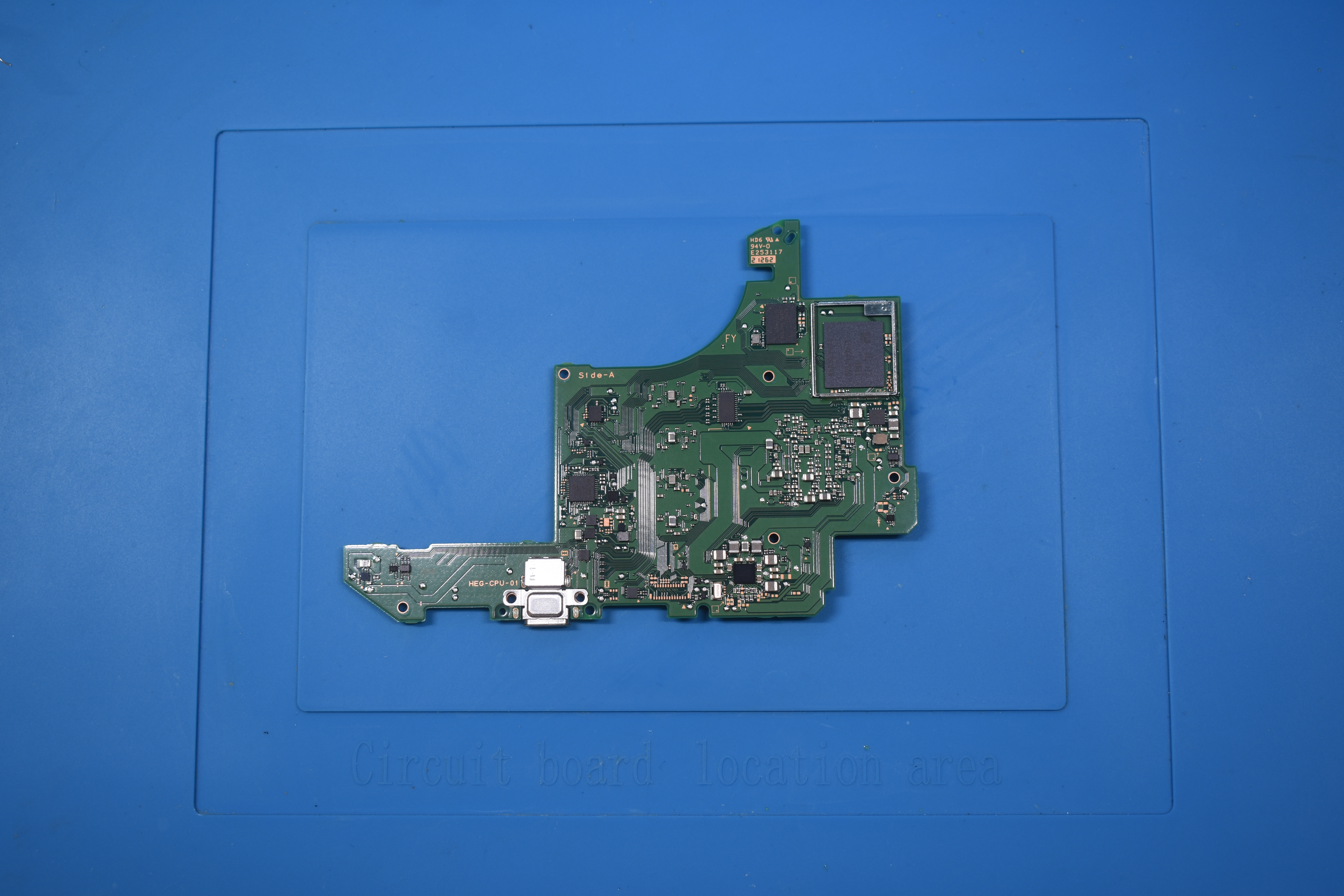
-
Turn the motherboard back around and locate the SoC. Ensure your working area is clean, you do not want to have thermal paste interfere with your soldering tin. This can also cause corrosion over time if you don't clean the area properly.
-
Place the SoC ribbon cable and align the ribbon cable with the capacitors on the SoC.
Note regarding the SoC ribbon cable (Click to unfold)
-
If your SoC ribbon cable is too short or you use an
RP2040-Tinydevelopment board, you cannot plug into the modchip directly. To make it work regardless, you can just solder a wire to the two middle pins of the ribbon cable (as pictured below).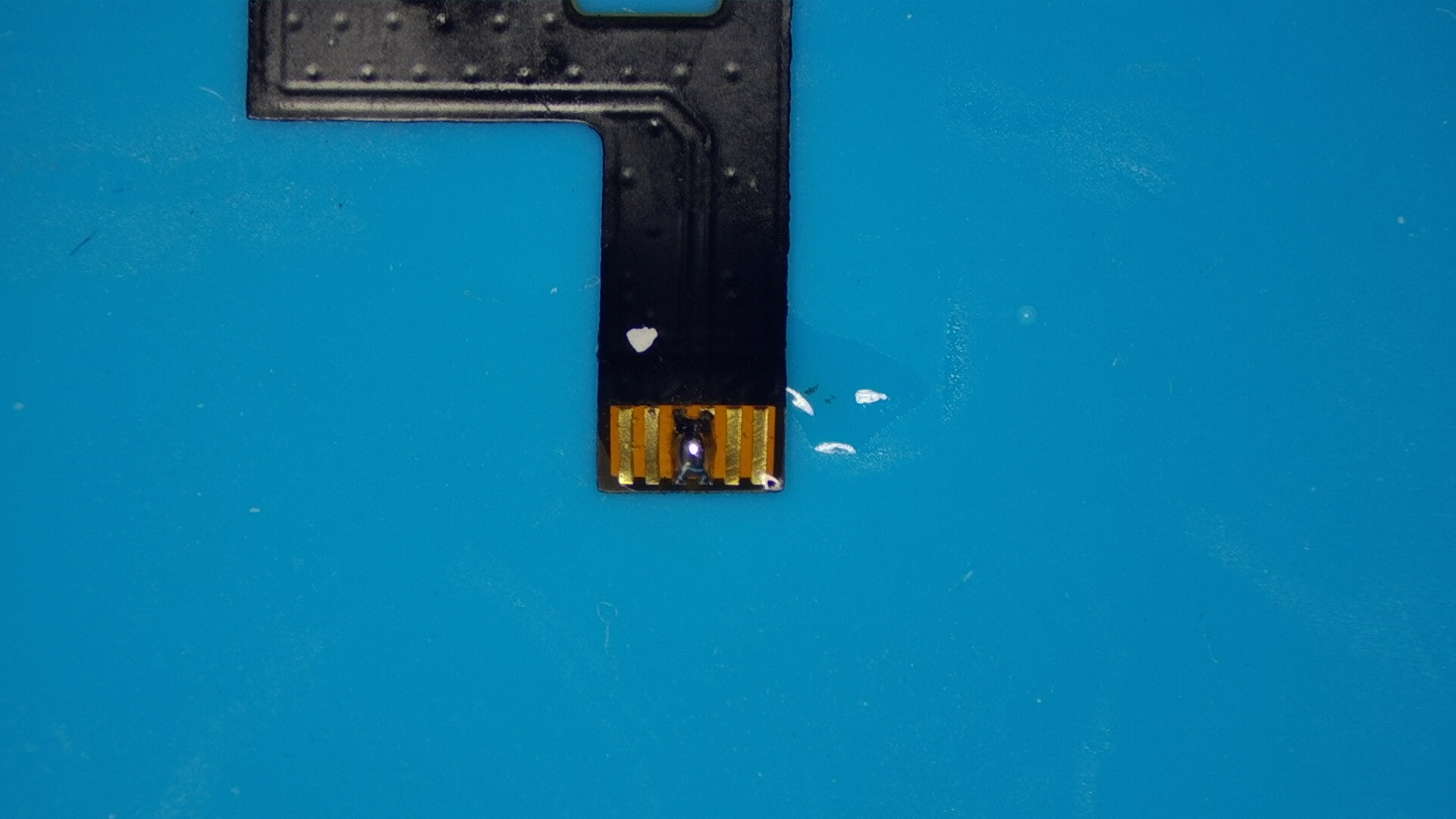
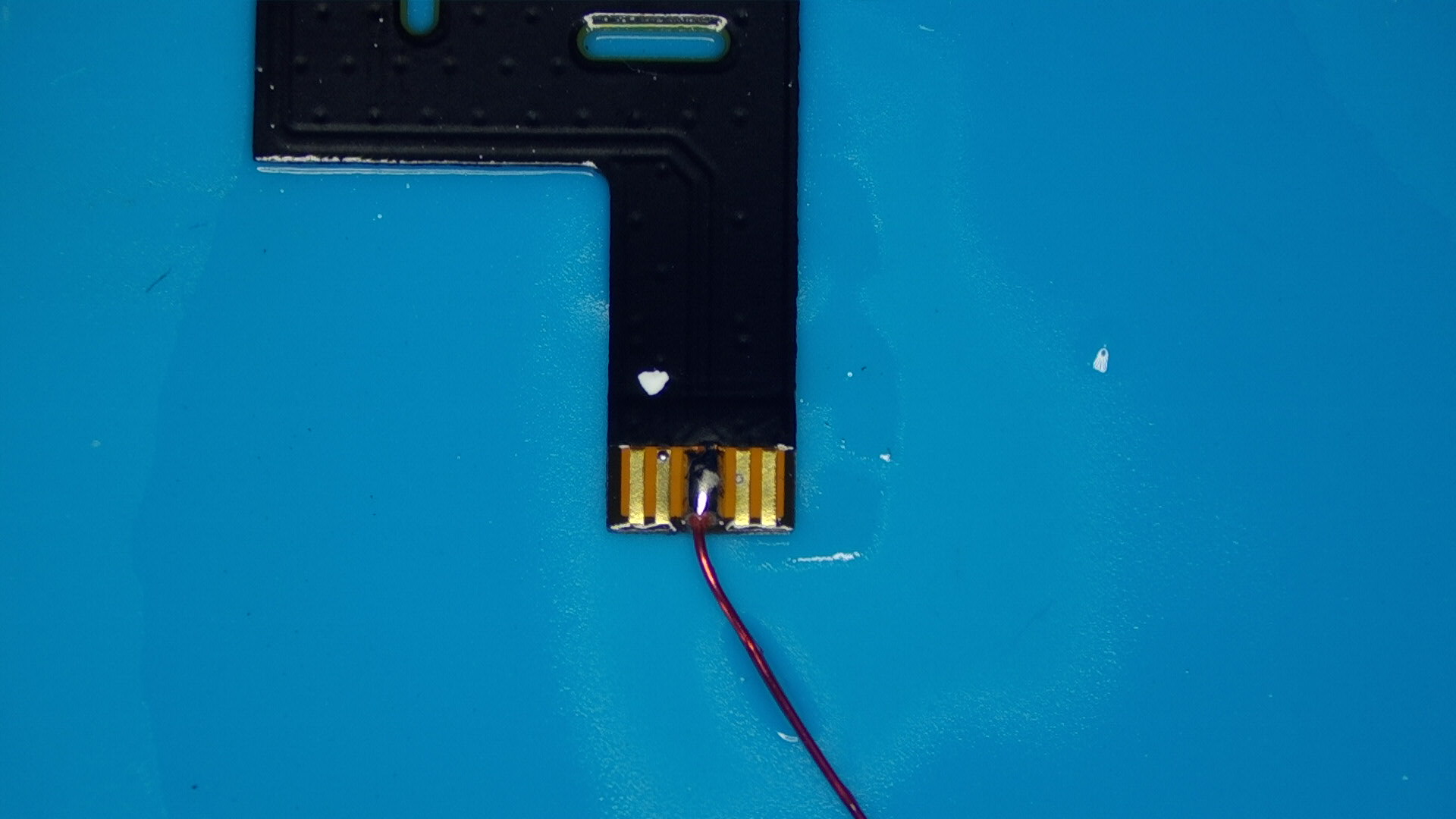
-
The "premade" Picofly OLED modchips will usually have a dedicated exposed pad on it that you can solder a wire to. You can view this pad below as well.
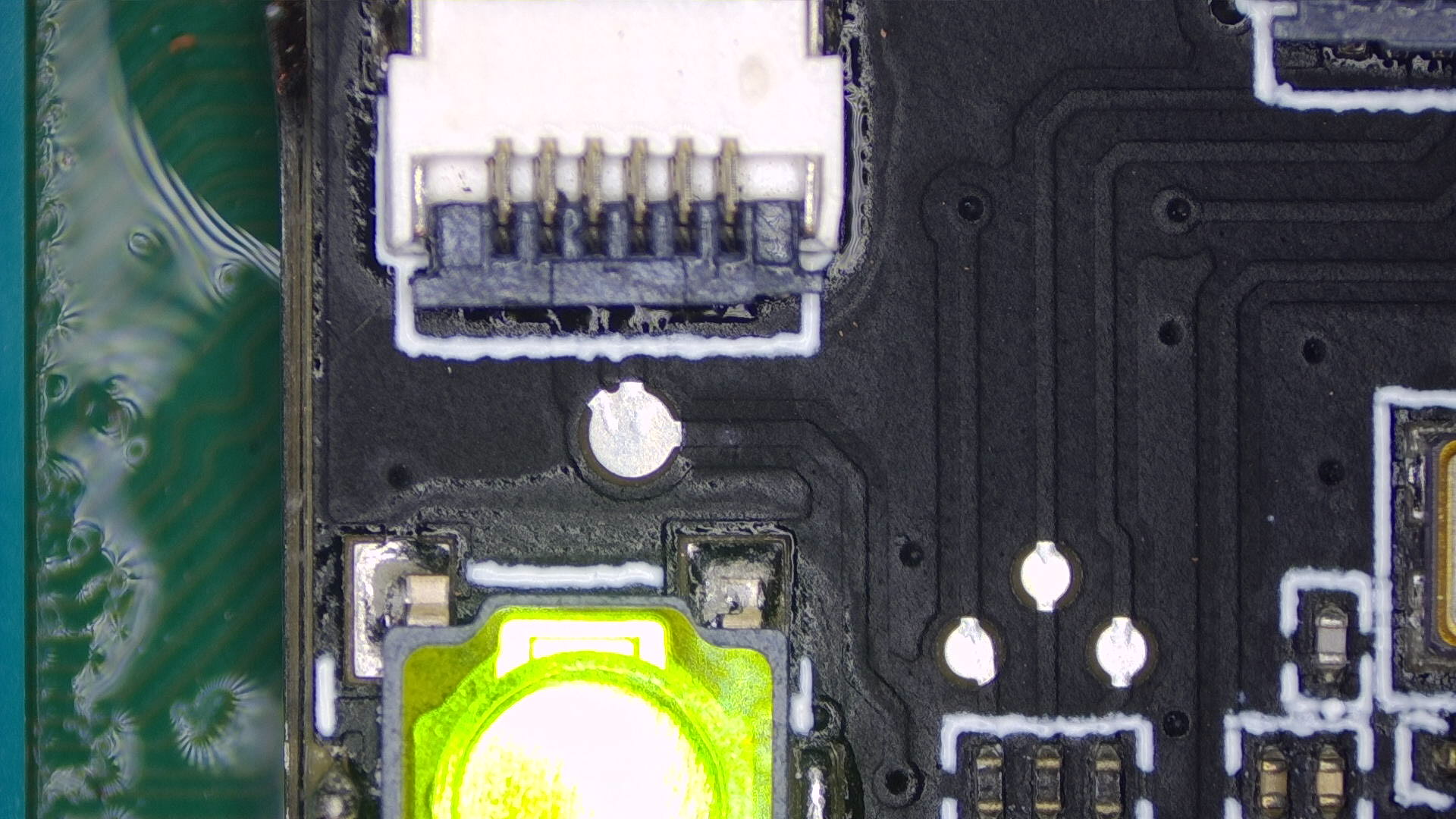
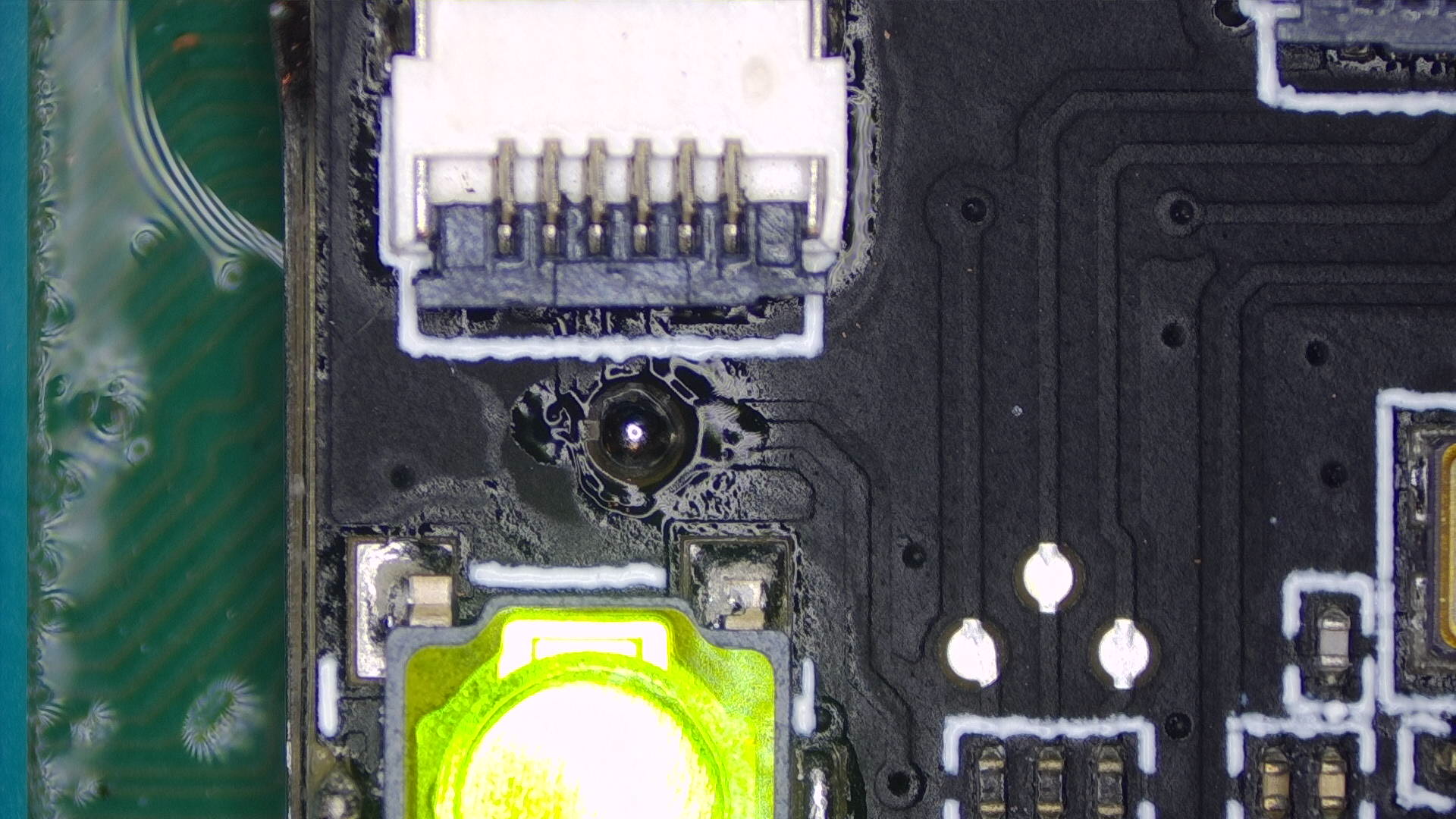
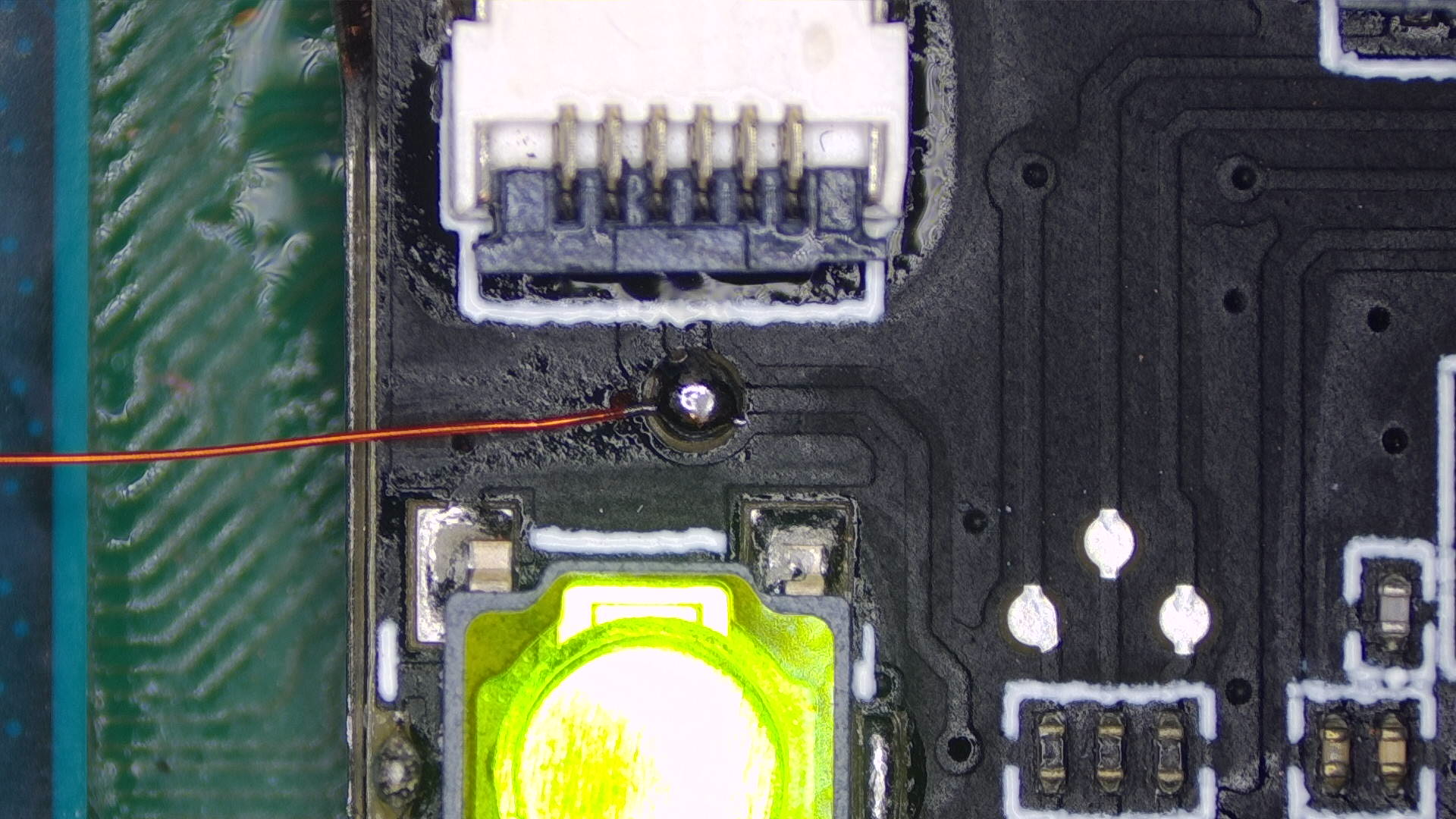
- Note: If your modchip model does not have this dedicated pad, you can simply scrape off some solder mask off of the
SP1/SP2trace on the modchip and solder directly to said trace.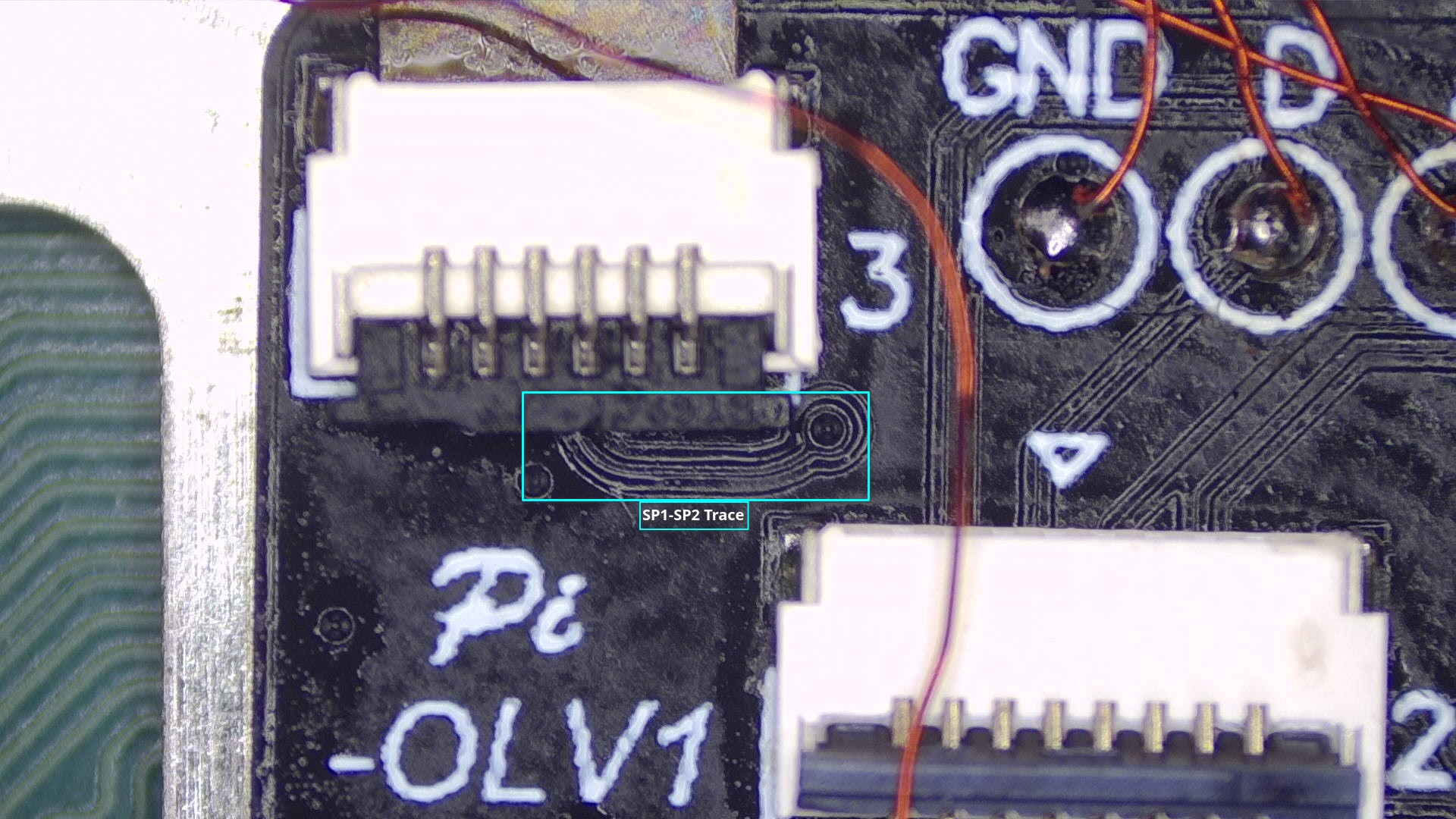
- If you use the
RP2040-Tiny, it has a dedicated GPIO pin (pin 15). You can refer to the pinout at the very top of this page
- Note: If your modchip model does not have this dedicated pad, you can simply scrape off some solder mask off of the
-
-
Tuck the anker points underneath the metal frame below the SoC and the MOSFET section of the ribbon cable underneath the frame between the SoC and RAM.
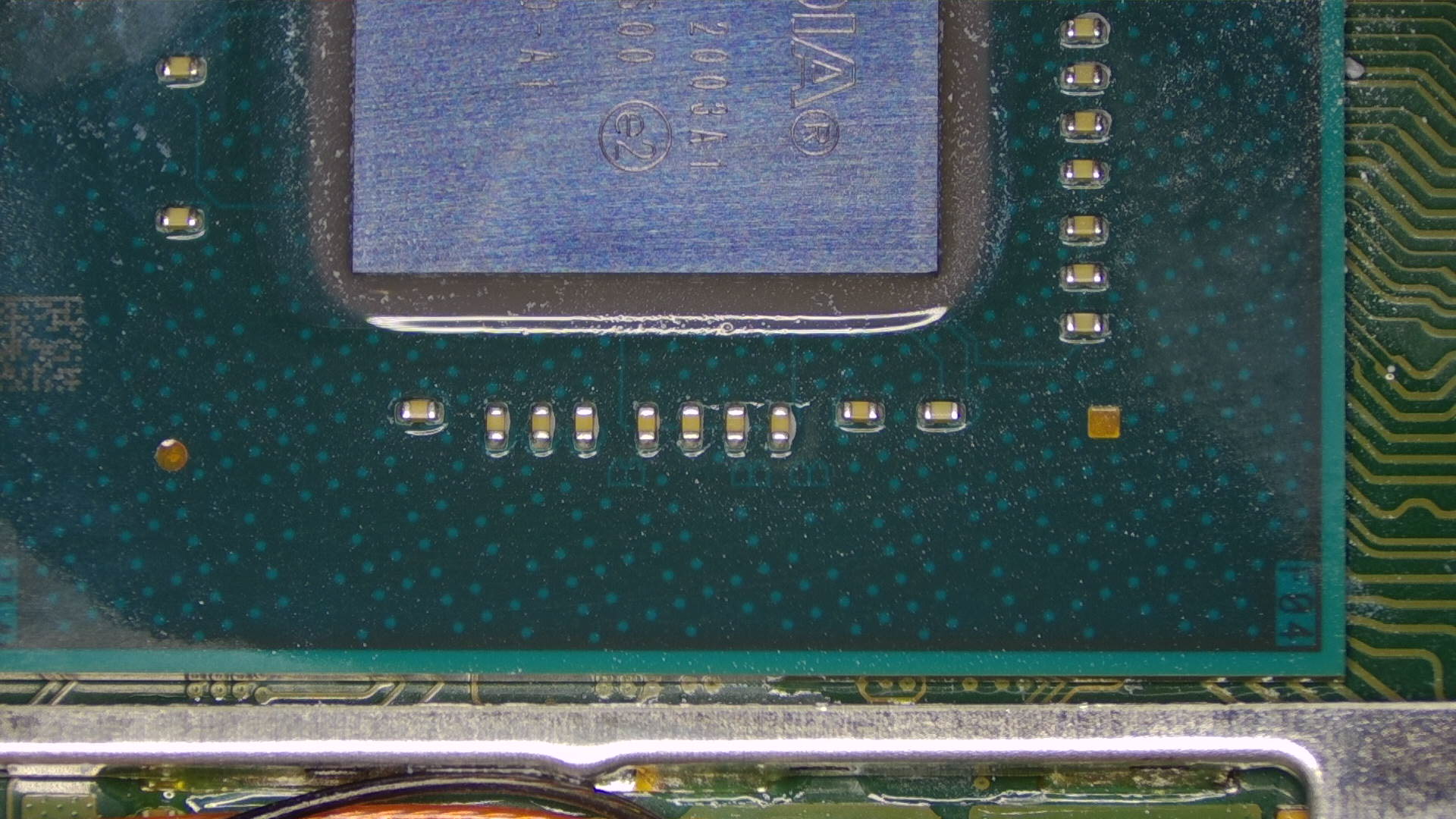
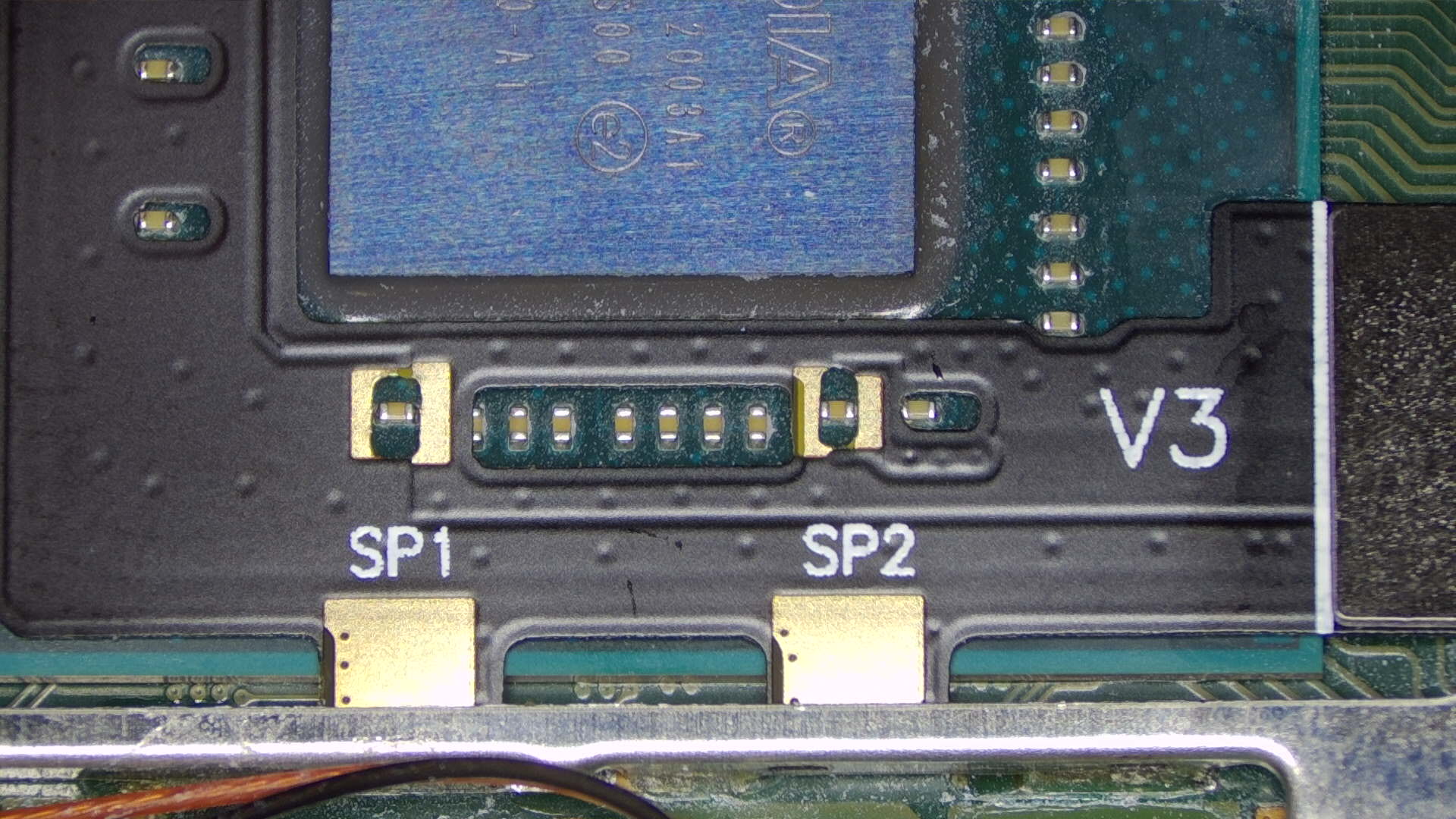
-
Apply flux and use your soldering iron to heat up the end of each capacitor together with the respective pad next to both ends of each capacitor of the
SP1andSP2points, ensure the solder flows between the pad on the ribbon cable and each end of the capacitors.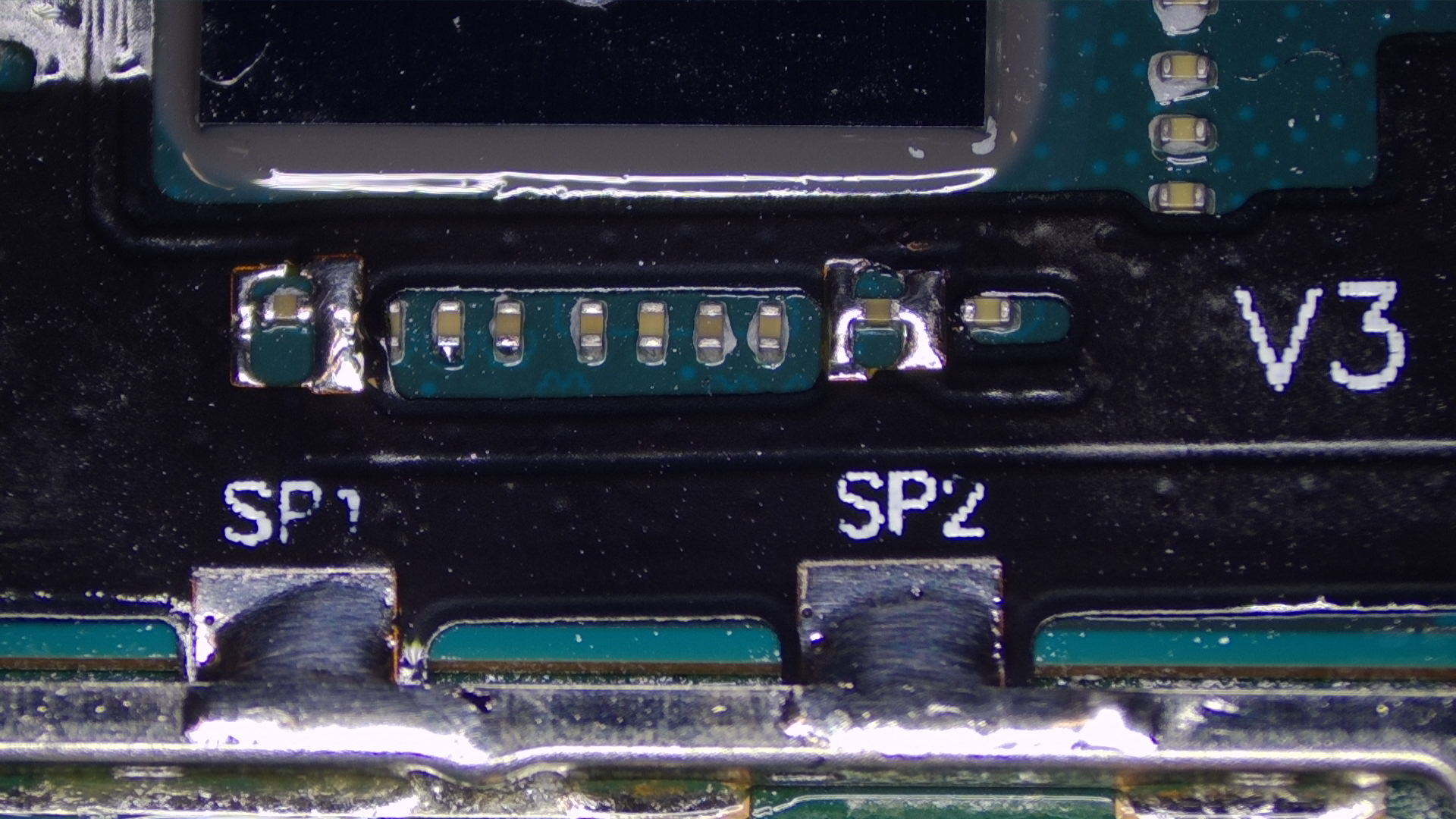
-
Your ribbon cable should now be secured in place with both ends of each capacitor soldered to the pads on the ribbon cable.
- Optional: Place Kapton tape across your solder joints to prevent thermal paste from potentially corroding your solder joints in the future. It also helps in cases where you might have to rework your solder joints.
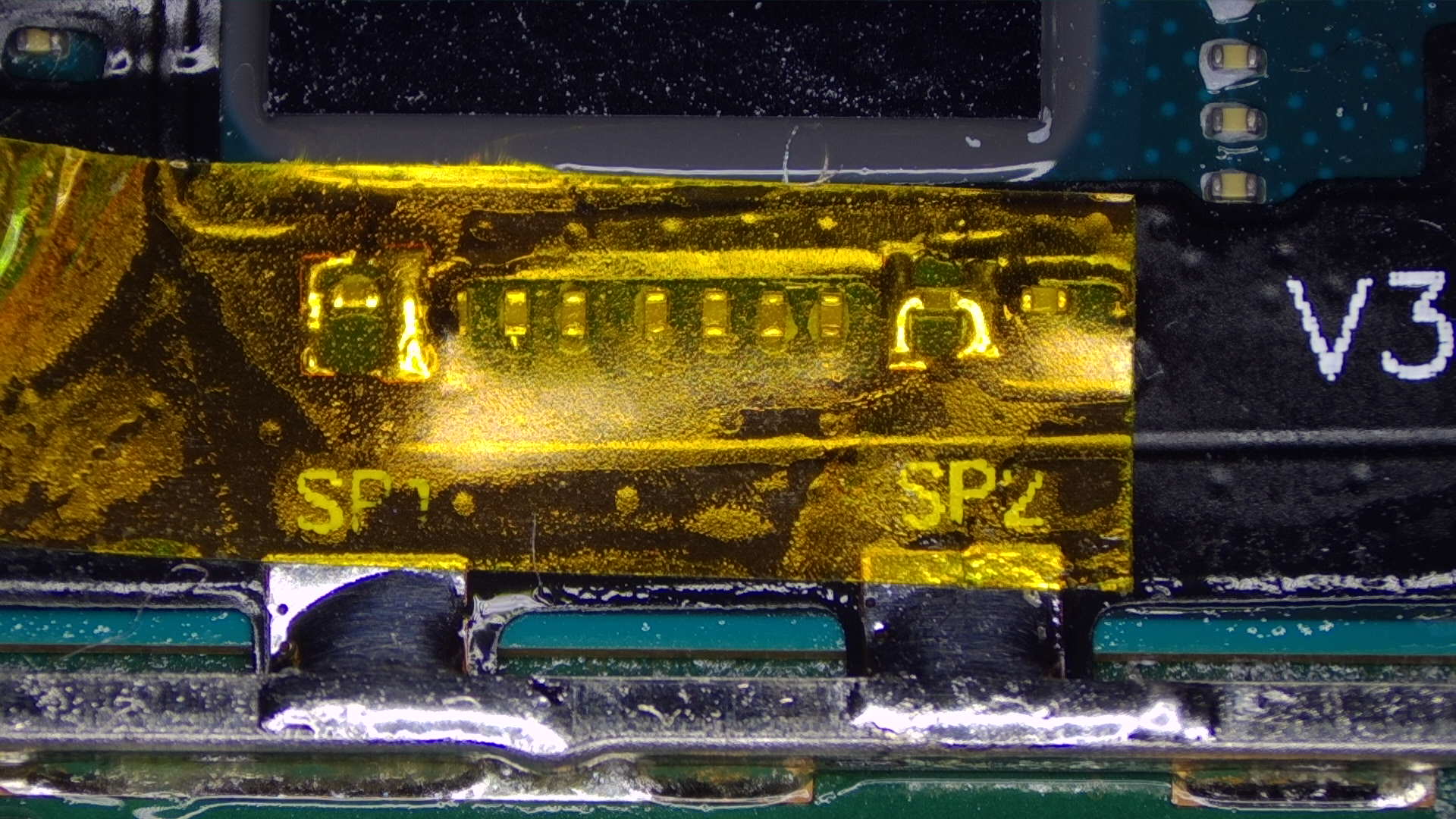
- Optional: Place Kapton tape across your solder joints to prevent thermal paste from potentially corroding your solder joints in the future. It also helps in cases where you might have to rework your solder joints.
-
Remove a part of the frame around SoC/RAM that's covering the
D(CLK) point and scrape away the solder mask on top ofD(CLK) point on the motherboard using a thin and sharp metal tool until the pad underneath is visible and open to the air (otherwise you won't be able to follow along with the next step).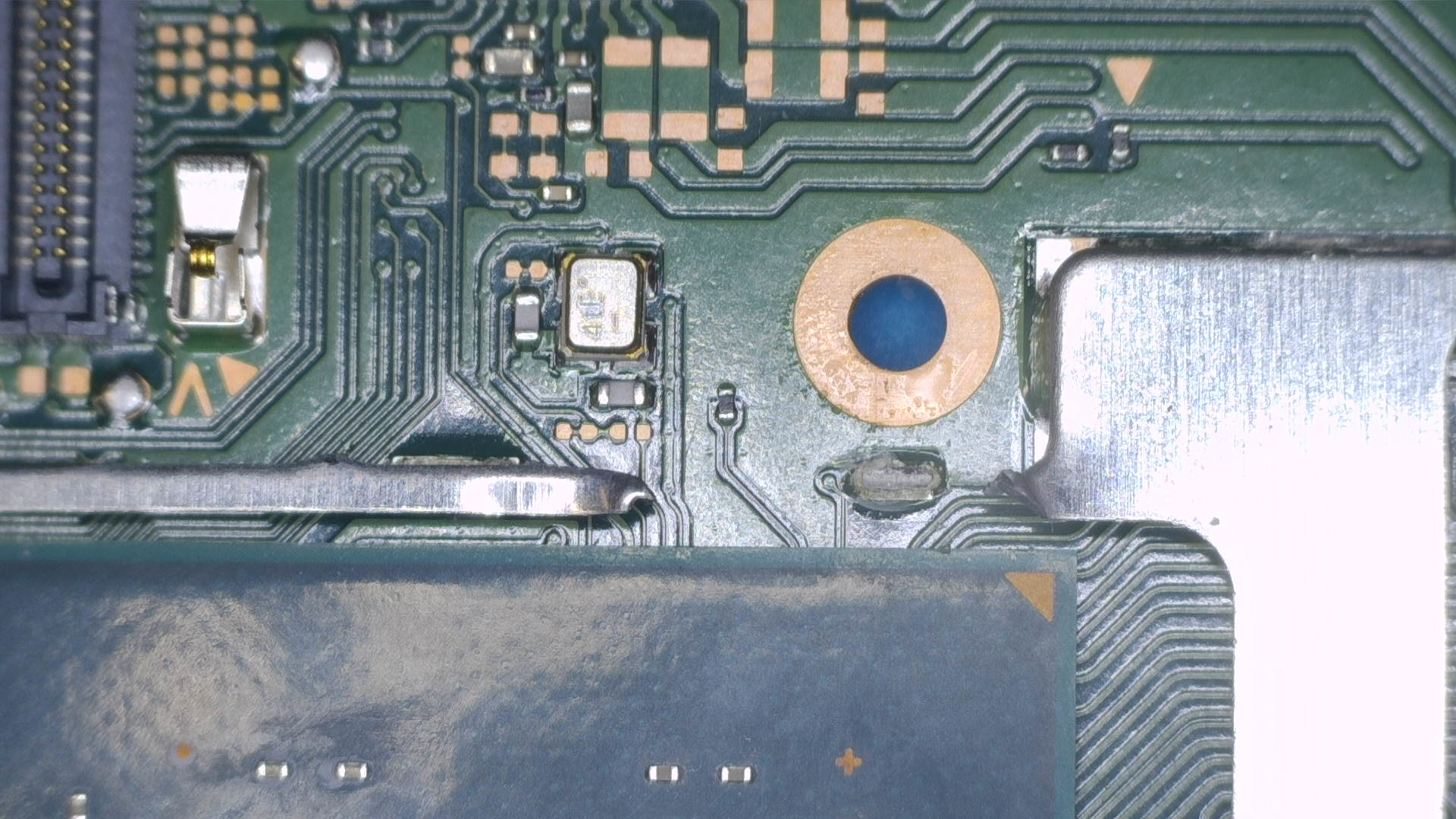
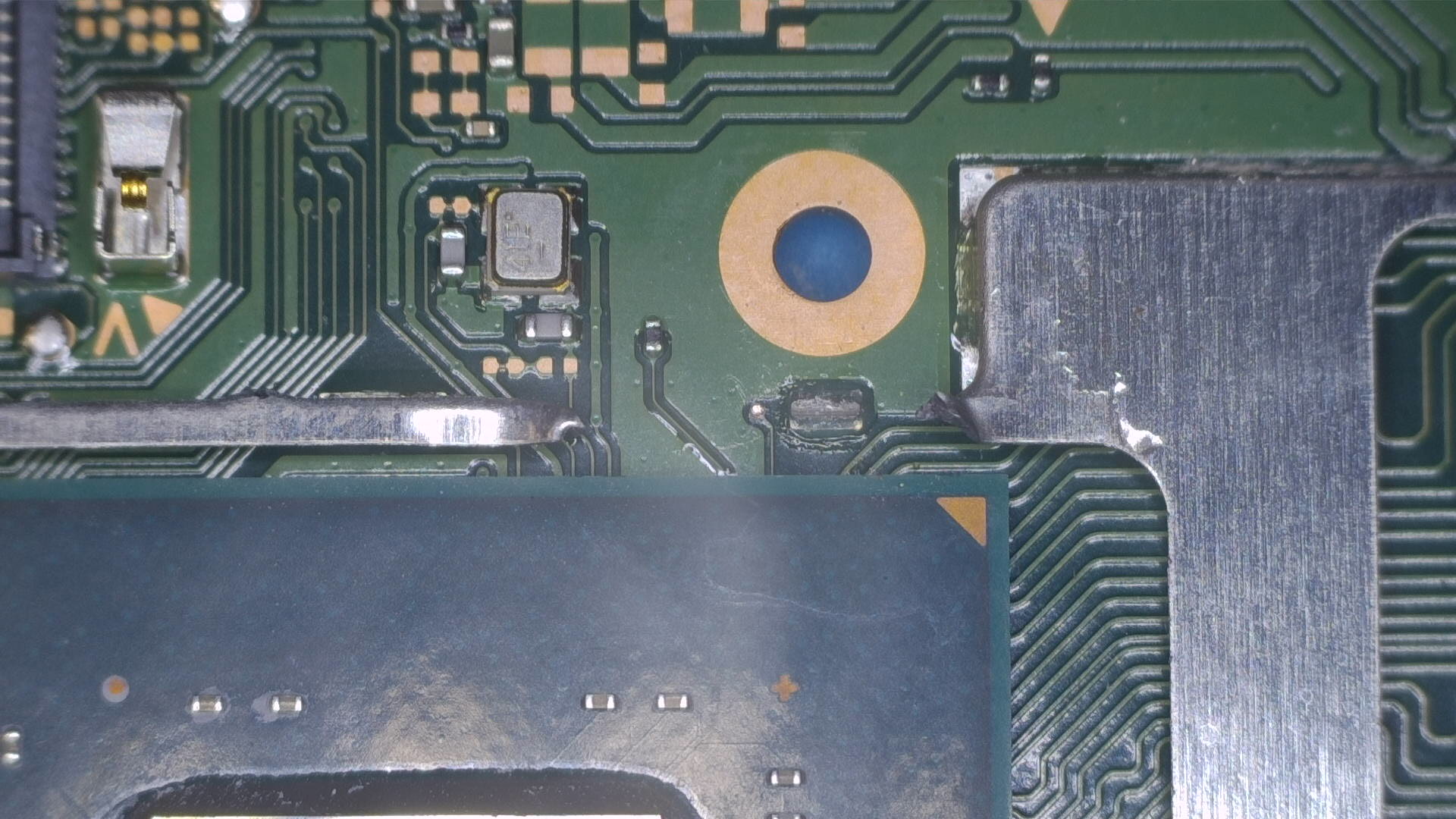
-
Tin the
D(CLK) point and wire, then solder a piece of your wire to theDpoint.- Optional: Use UV solder mask on the
Dpoint. It's a very fragile point and is not something you want to have to potentially resolder in the future.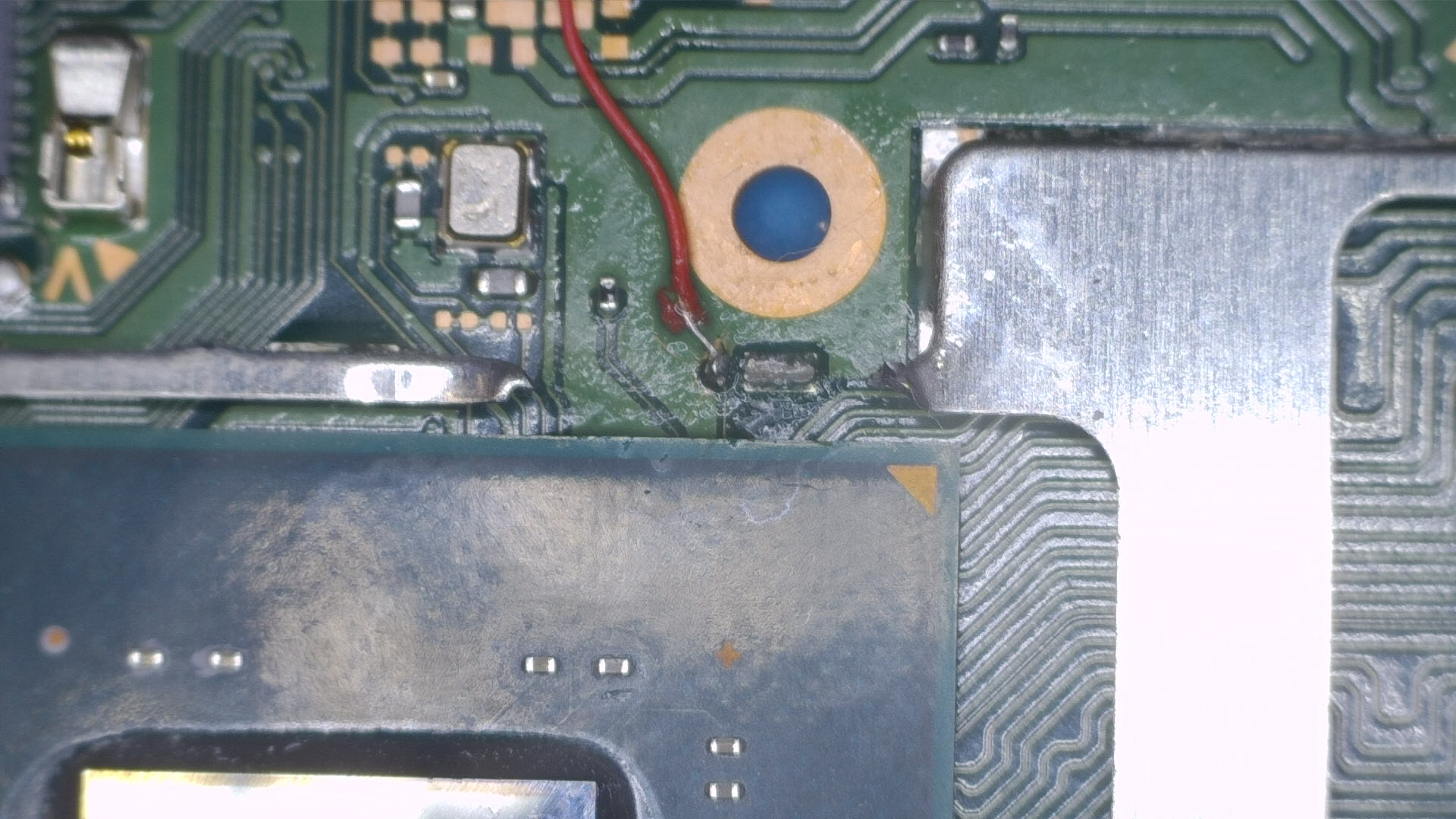
- Optional: Use UV solder mask on the
-
Tin your wire and solder a piece of wire to the bottom end of the
A(CMD) resistor. Be careful, as heating this resistor up too much has the chance to kill the resistor or will cause it to stick to your soldering iron and wipe it off of the motherboard completely (this only happens if your soldering iron is too hot and hold it on the resistor for too long).- Optional: Use UV solder mask on the
Apoint. It's a very fragile point and is not something you want to have to potentially resolder in the future.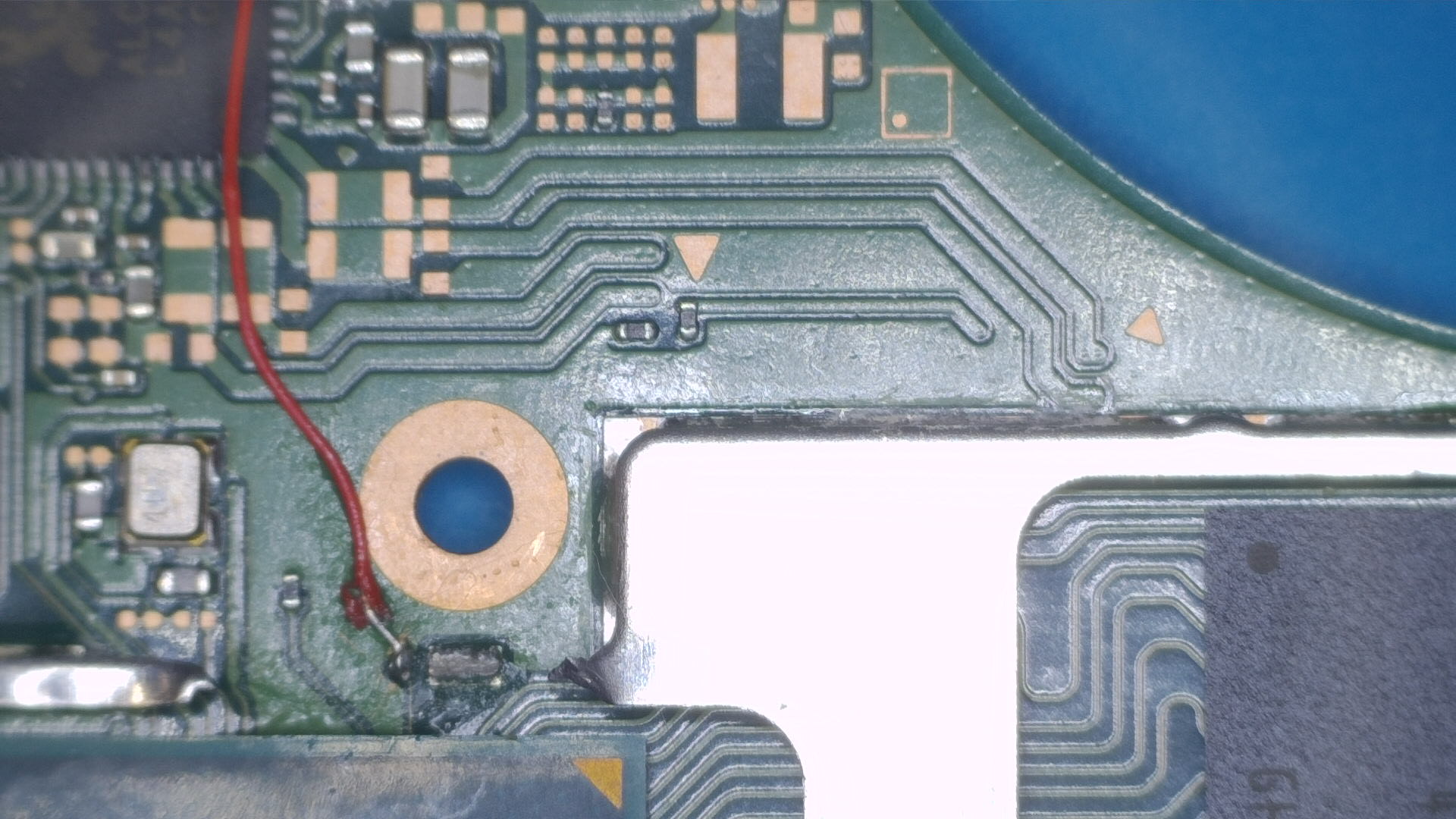
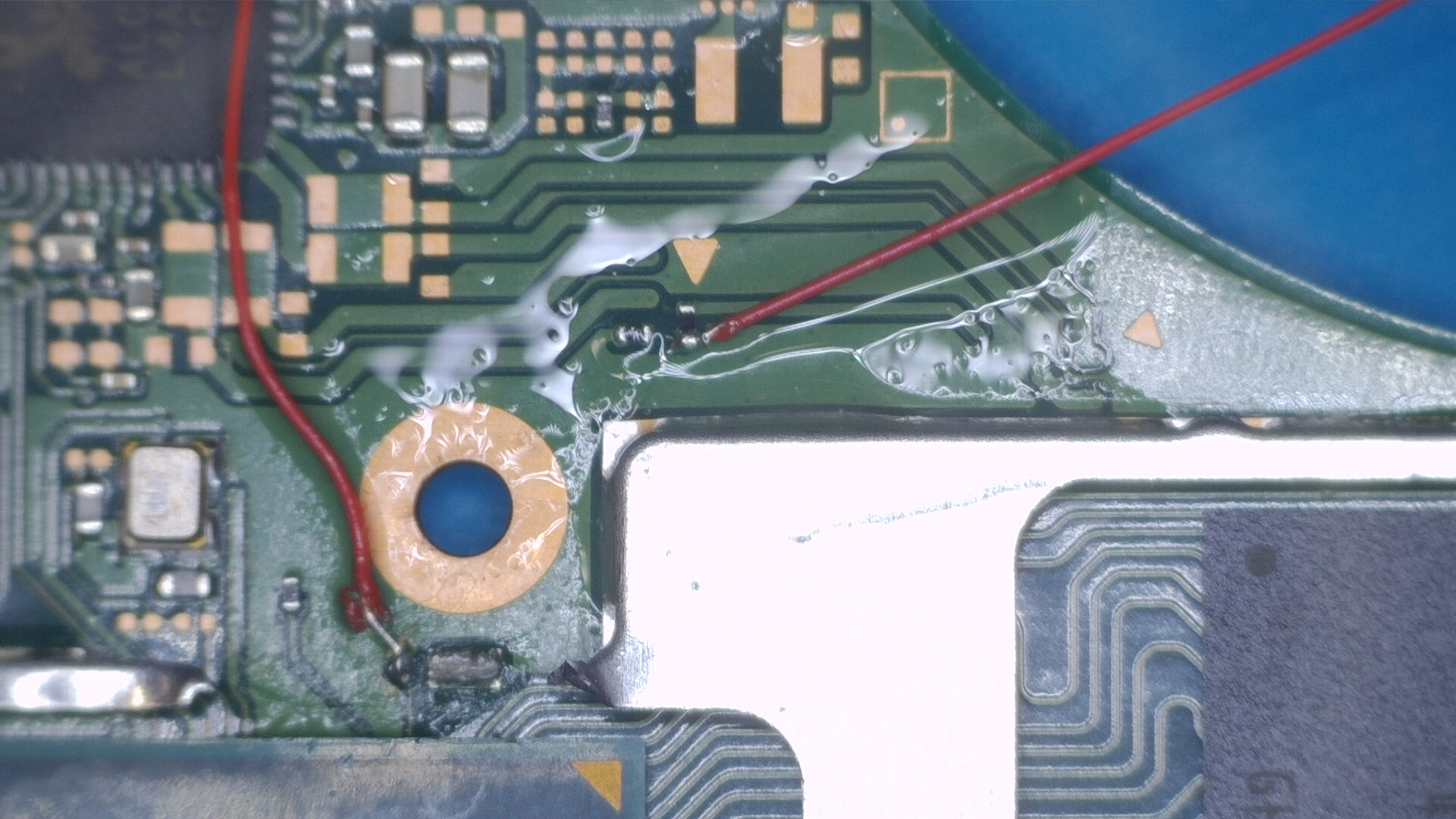
- Optional: Use UV solder mask on the
-
B(RST) Point methods¶ -
C(DAT0) Point methods¶ -
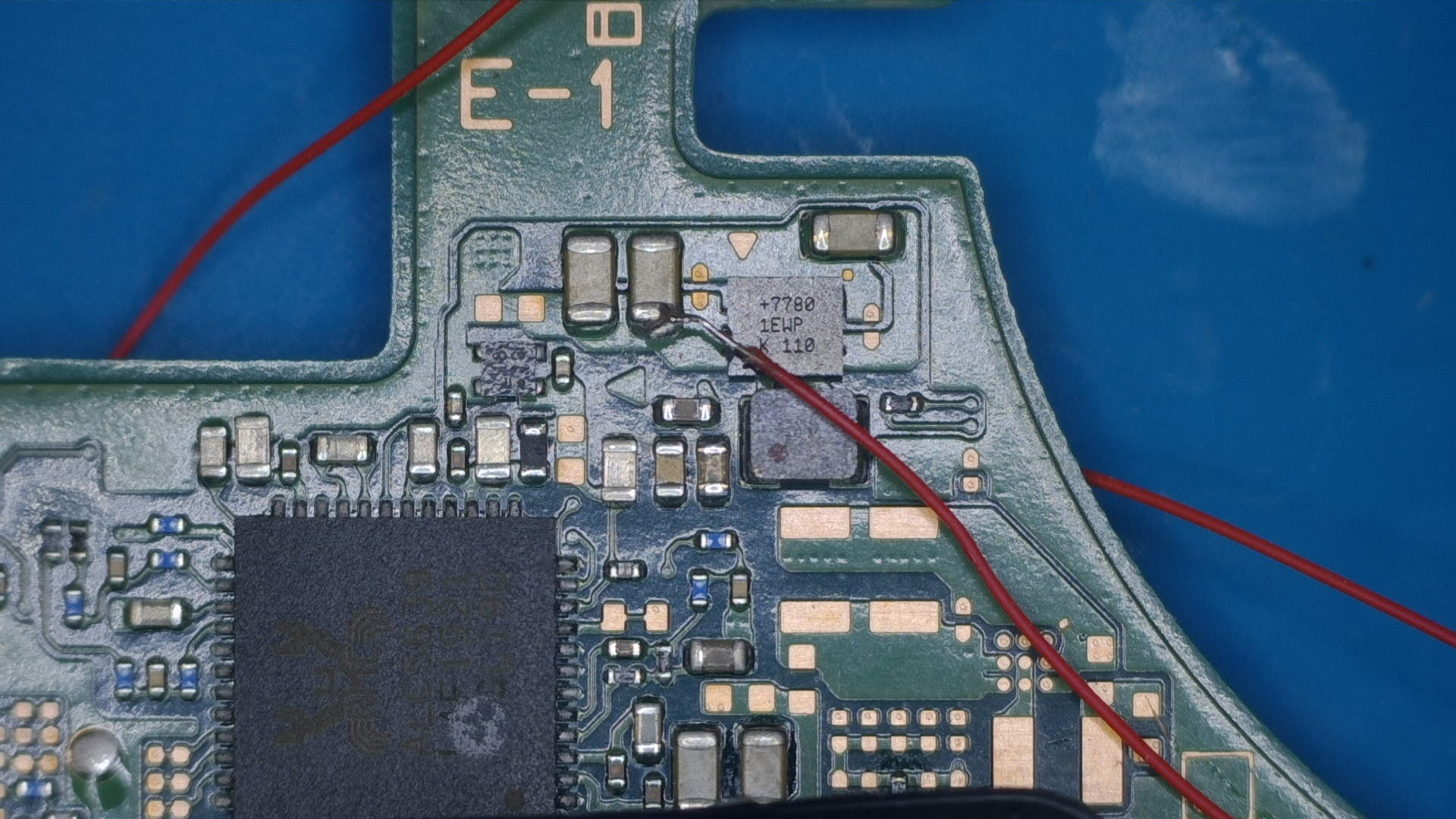
Now, we will locate the
3.3vcapacitors near the top-middle on the front of the motherboard.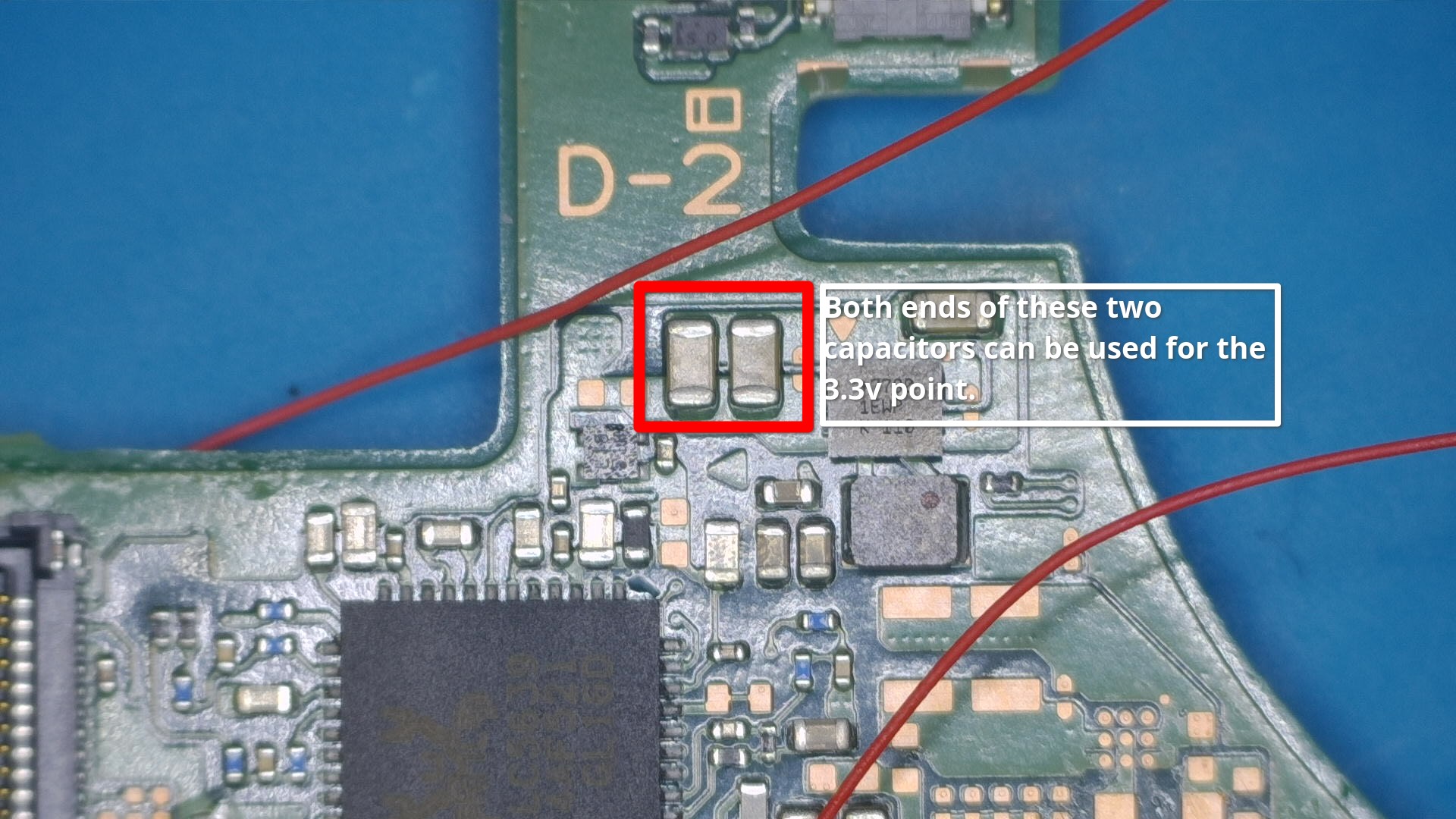
-
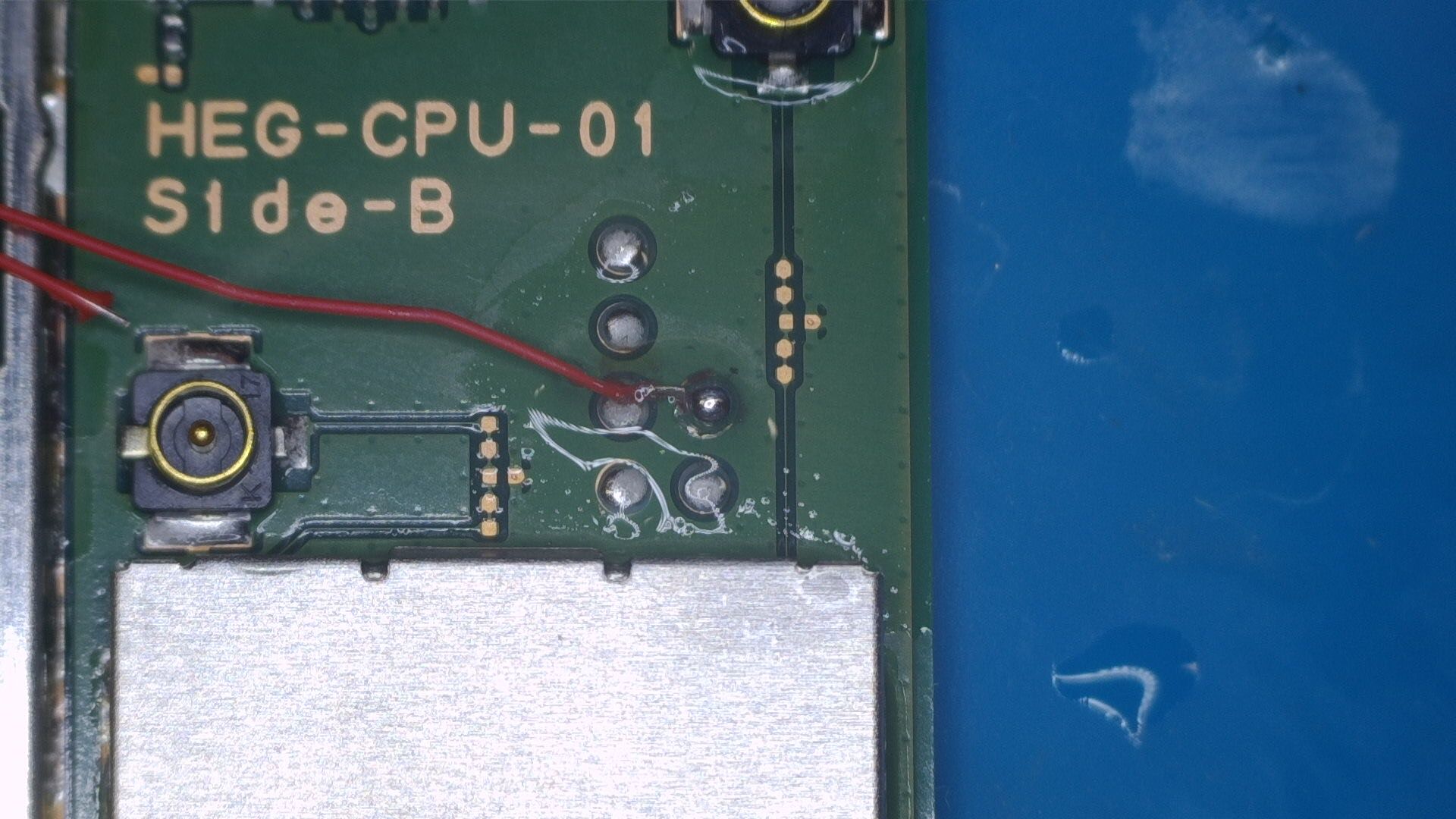
Locate the
GND(ground) pad on the middle-right side of the motherboard.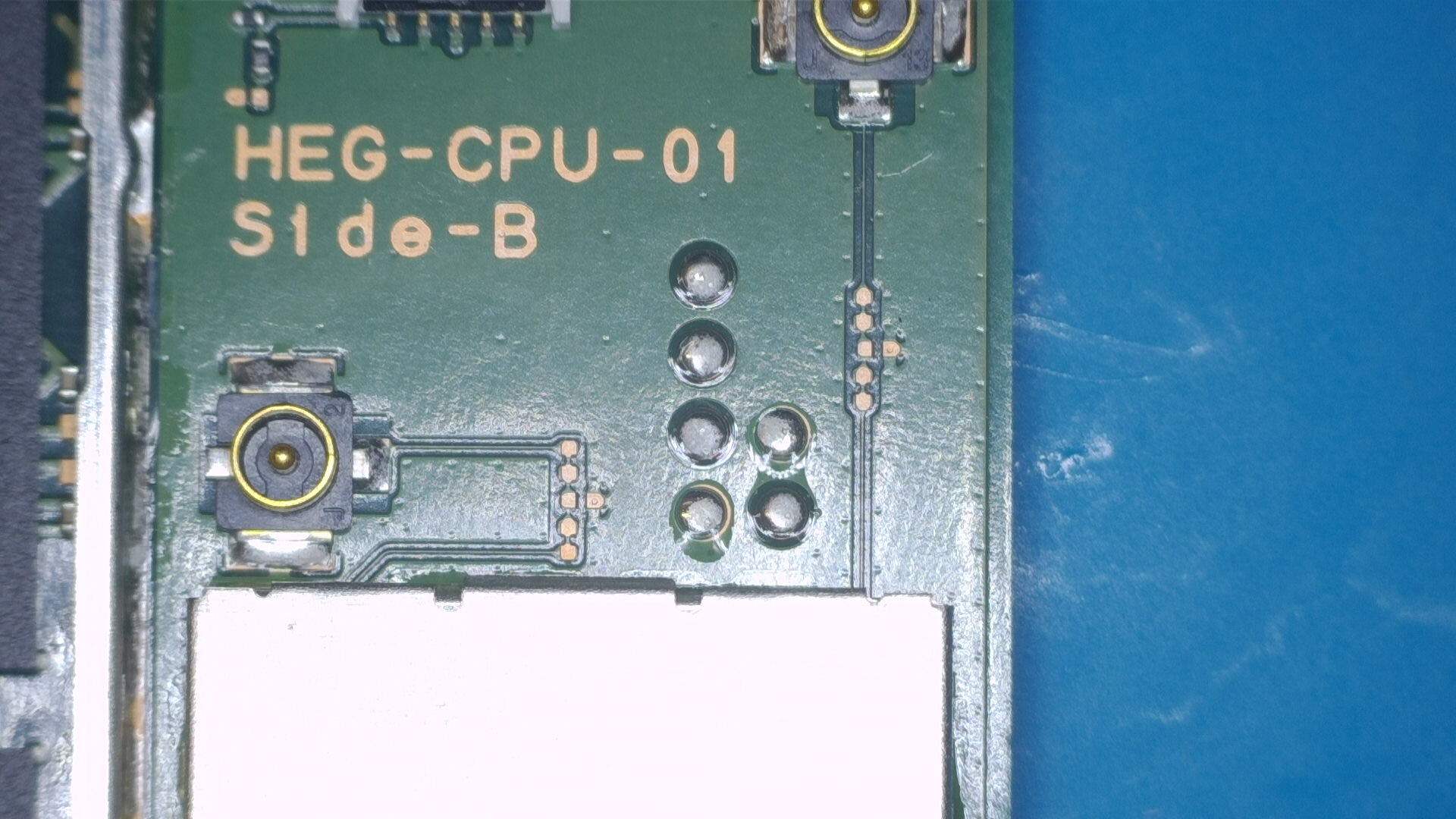
-
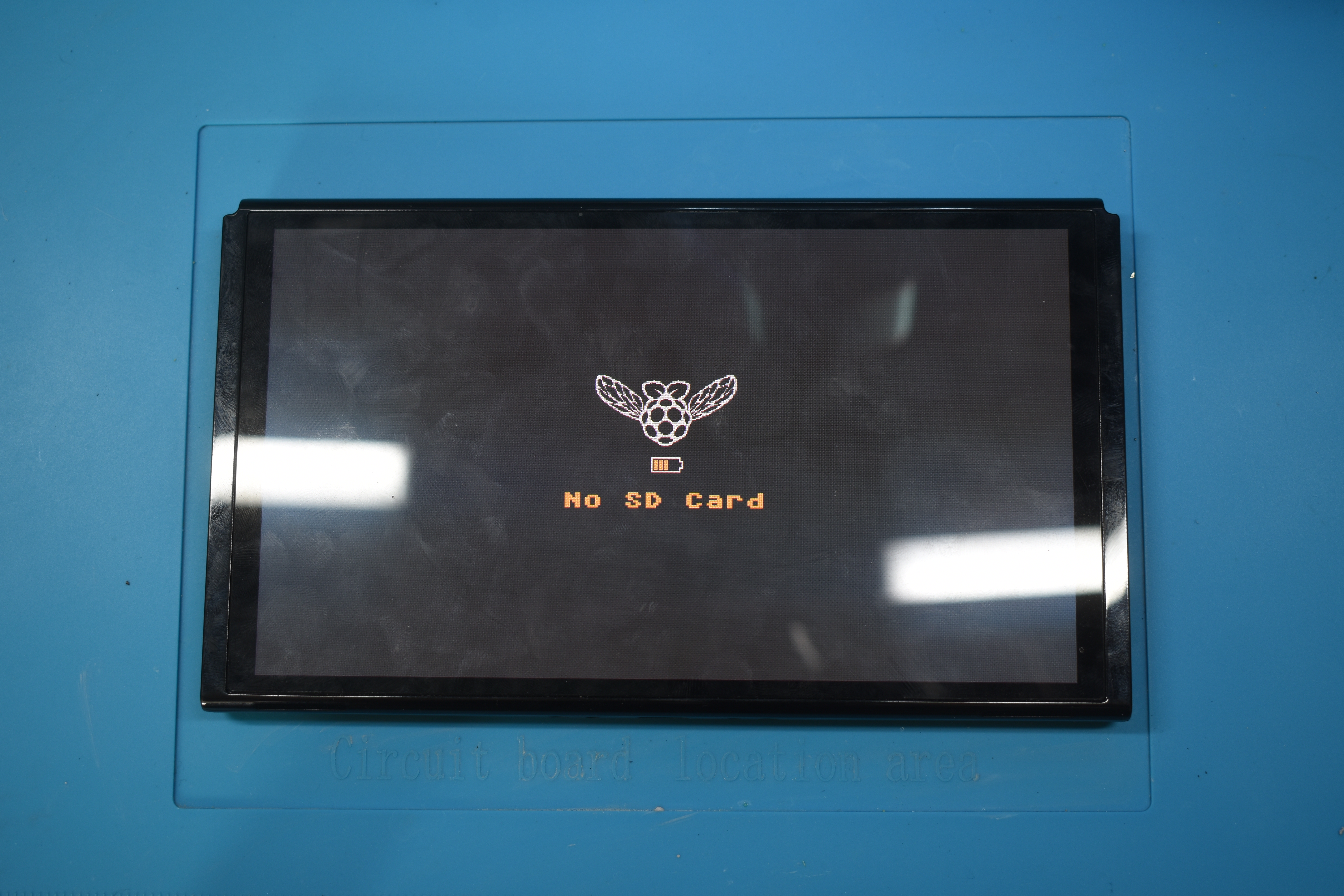
Wire up the modchip. Place something non-conductive between the modchip and RAM chips, then power the console on. The modchip will pulse blue/light blue a couple of times (glitching), then yellow (success). You should end up at a
No SD Cardsplash screen with the Picofly logo after the modchip blinks yellow once.- Note: Getting to the
No SD Cardscreen does not always indicate success. Sometimes solder joints or electrical connections may be good enough for glitching but not for booting HOS (HorizonOS), please ensure that you test if your console boots by ensuring the console is off, then holding both volume buttons and pressing the power button once, letting go of the volume buttons when you see the Nintendo logo. If your Switch does not boot normally, please check if your console boots by removing the modchip (not the SoC ribbon cable) and turning the console on normally. If you still experience issues related to glitching/training (such as a red error code), refer to the troubleshooting page.
Note for stock
RP2040-Tinydevelopment board usersPlease refer to the pinout at the very top of this page.
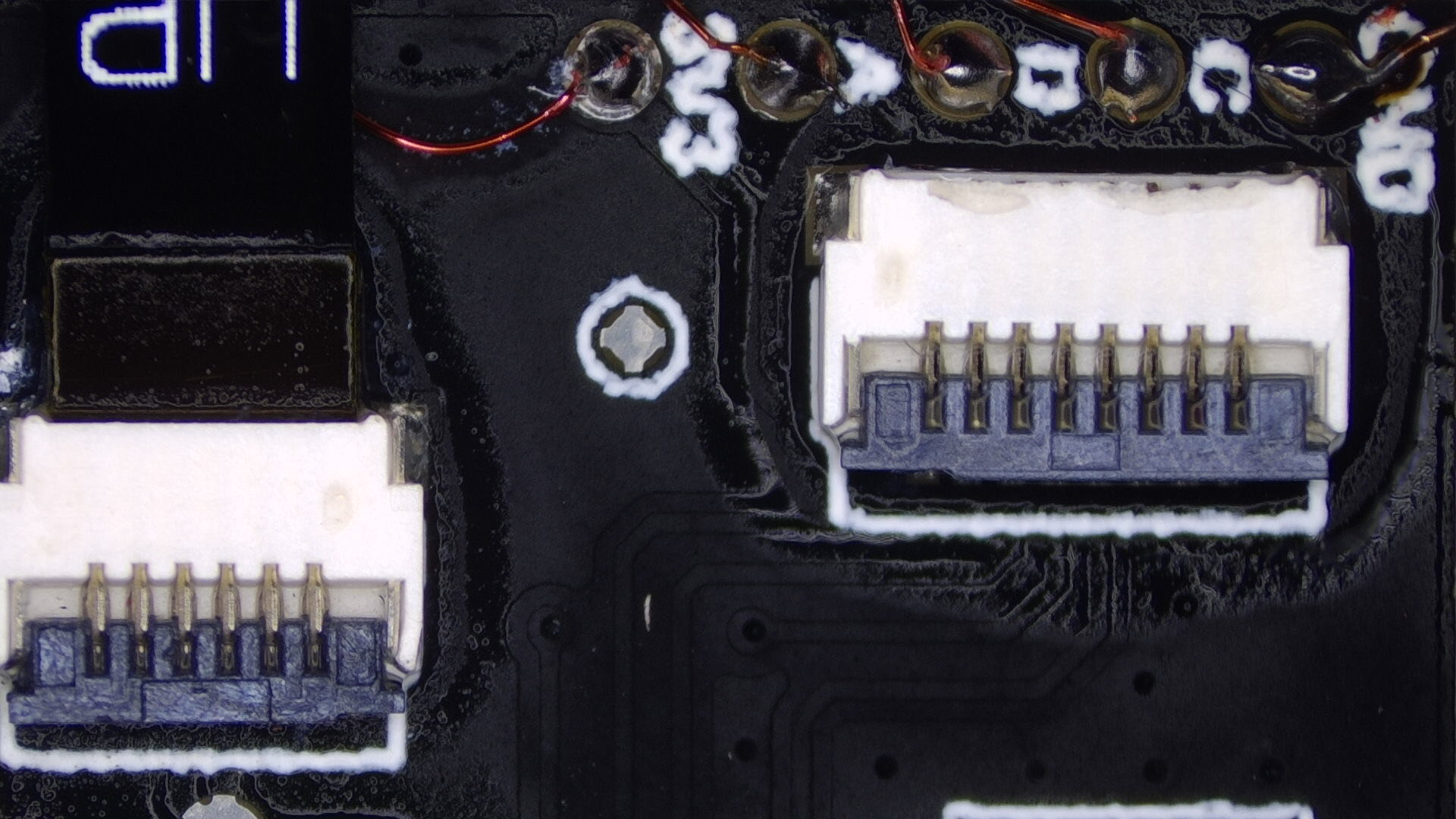
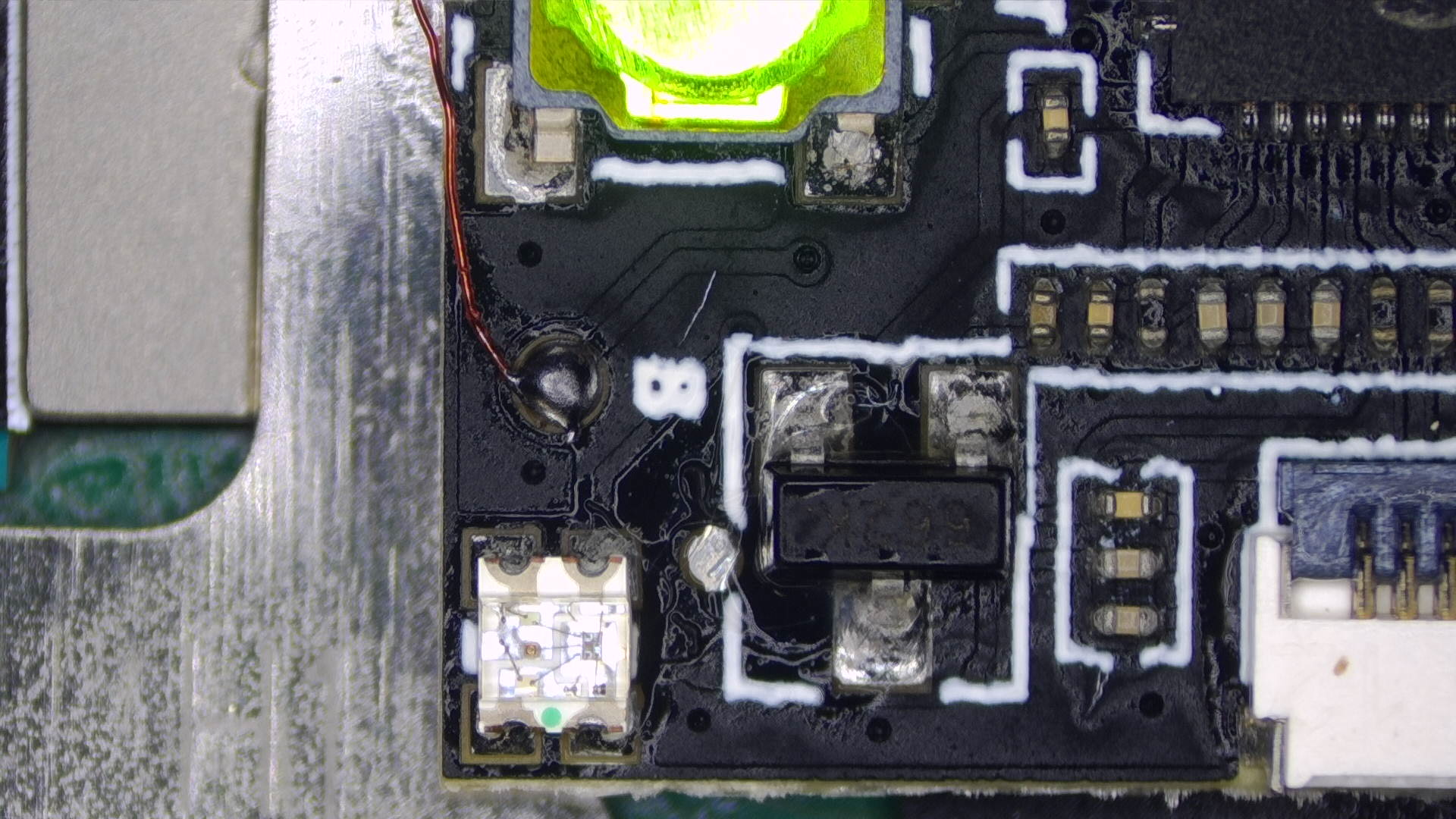
- Note: Getting to the
-
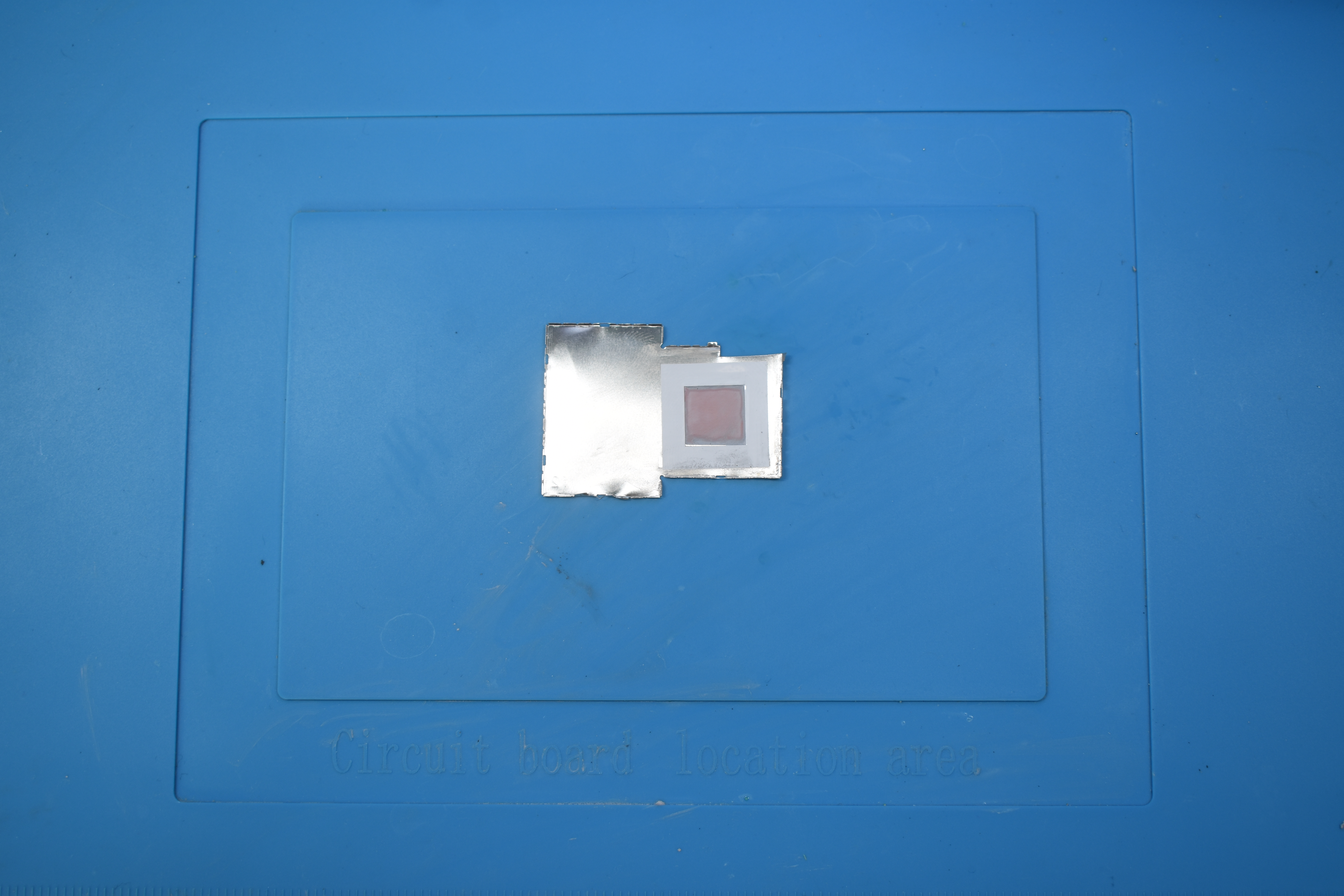
Modify the IHS to make the SoC ribbon cable fit out of the top of the SoC section of the IHS and reinstall the IHS. (Don't forget to apply thermal paste in between the SoC and IHS!)
-
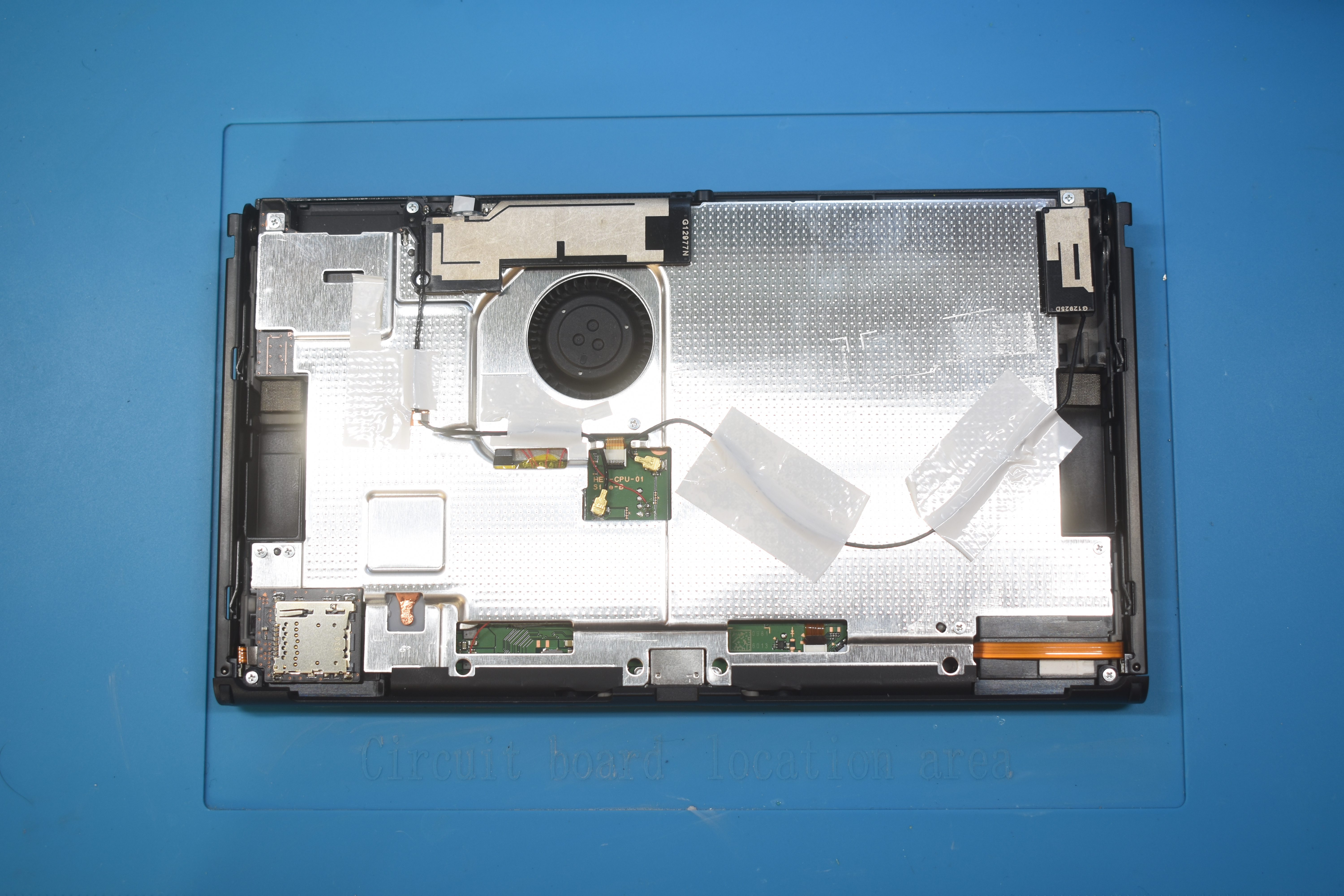
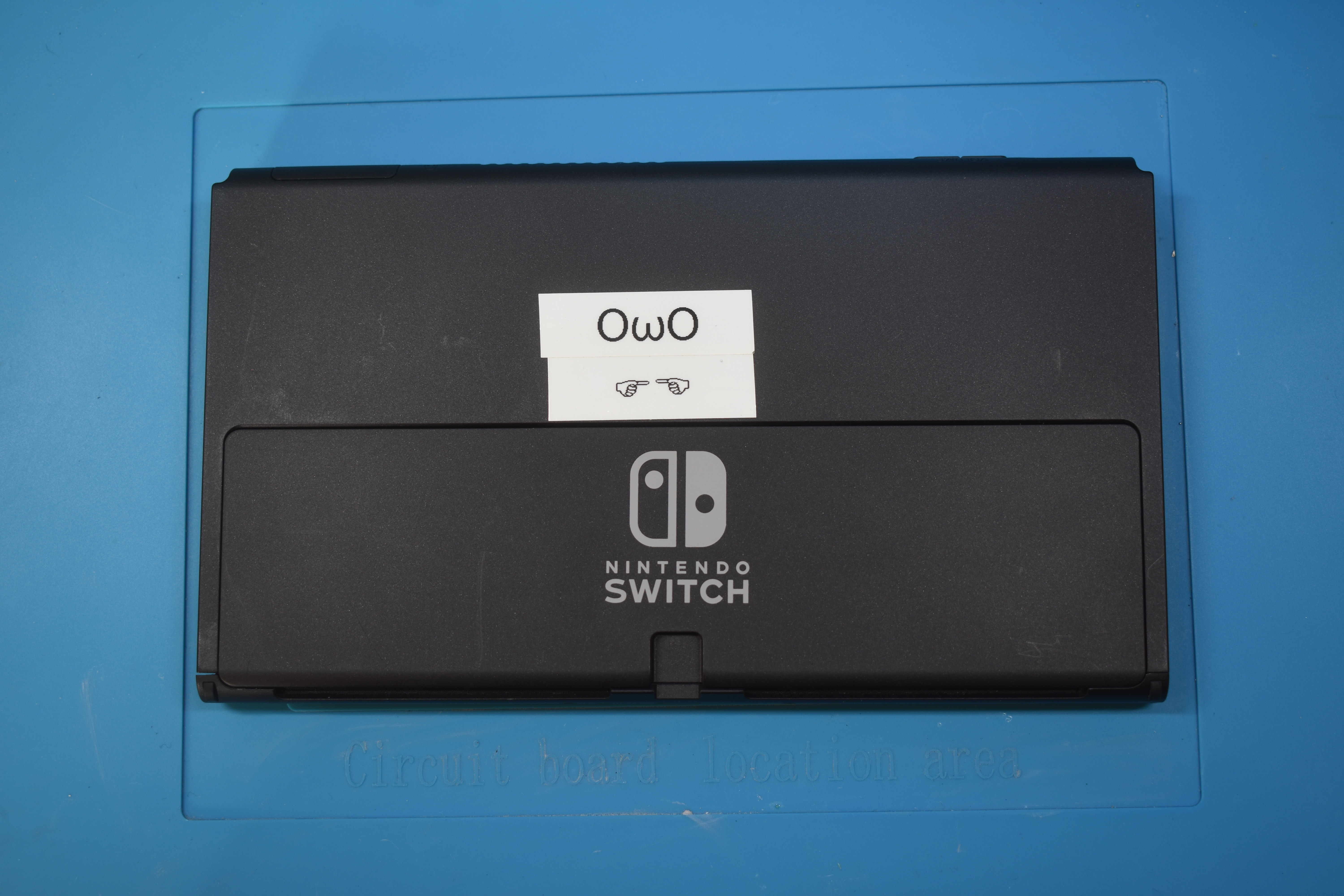
Place a piece of Kapton tape (or other non-conductive material) on top of the modchip and reassemble the console.
-
Turn the Switch on and you should still end up at the
No SD Cardsplash screen. If so, you've successfully followed and finished this guide.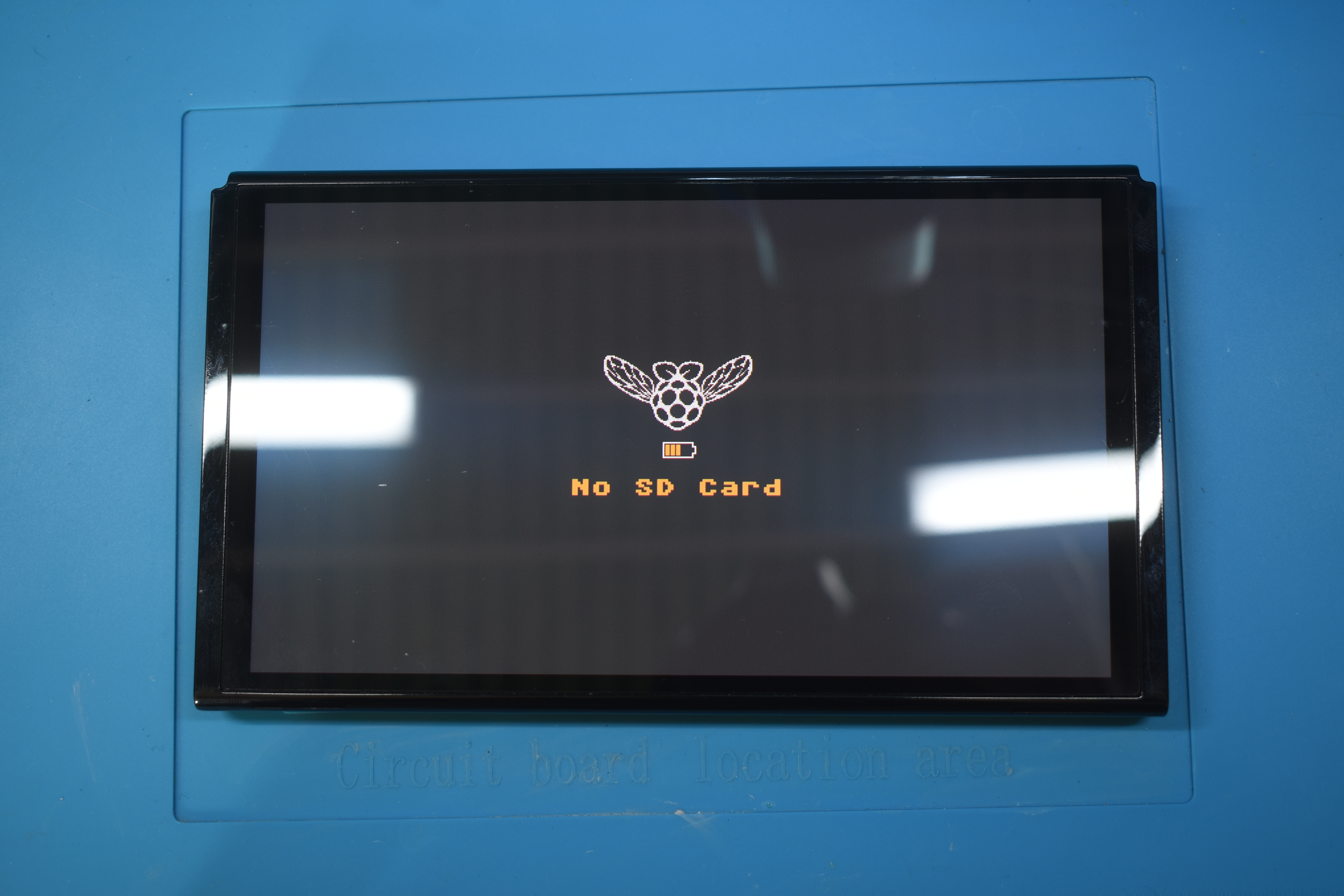
What's next?
From here, if you get the same result as I did, you can continue following the NH Server guide to set up CFW by clicking the button below. If you want to know more about the functionality of modchips, visit the Functionality of modchips page.
If you'd like to donate to me, visit the Credits section.
Continue to the NH Server guide
If you didn't get the same result as I did and are running into issues, please follow the troubleshooting section of this guide. It can be found here.